
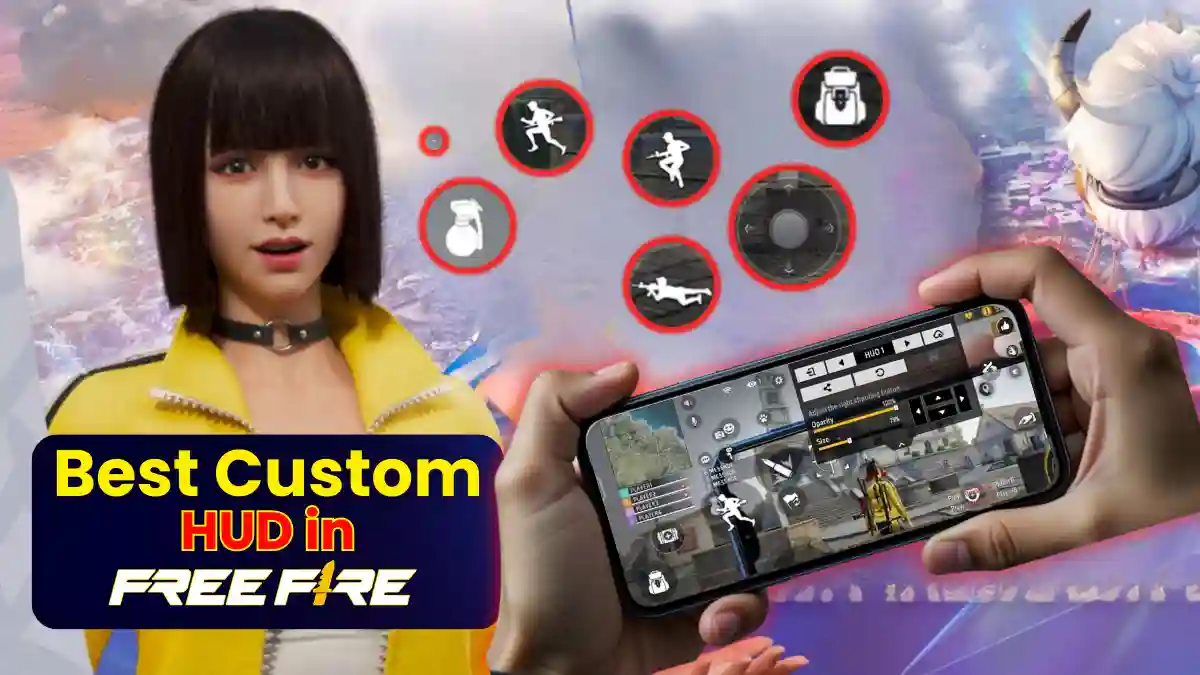
Quick Answer: The best custom HUD for Free Fire is a 4-finger claw layout with the fire button in the top-left, scope in the top-right, and movement joystick enlarged to 120% size.”
Seven years ago, when I first played Free Fire, I was in the same situation as you are today. My fingers were darting around the screen, searching for the fire button, enemies would come and headshot me, and I’d just watch. At that time, someone told me something that literally changed my entire game. He said: “Brother, fix your HUD first.”
I’m writing about everything I’ve learned since that day, what I’ve tried, what failed, and what finally worked. And now that the OB52 update is out, the situation has gotten even more interesting. New movement mechanics, faster gunplay, and players who are literally playing like PC emulators on mobile.
If you’re still on the default HUD, I’ll be honest, you’re doing yourself a disservice. In this article, the best custom HUD of 2 Finger, 3 Finger and 4 Finger, HUD with special headshot, exact layout of Pro Player which you can directly copy and use in the game, and most importantly those mistakes of 3 Finger switching which 90% of the beginners make.
What is Custom HUD in Free Fire
In Free Fire, a Custom HUD (Heads-Up Display) is the personalized arrangement of on-screen control buttons—such as fire, gloo wall, jump, scope, and weapon switch—that allows a player to interact with the game.
Unlike console games with static controllers, Free Fire allows users to move, resize, and adjust the transparency of every button on the screen to suit their physical comfort and playstyle.
RELATED POST- 50+ Short & Punchy Gaming Quotes for Your Instagram Bio
How to Access and Customize HUD in Free Fire
Customizing your HUD in one minutes:
1. Launch Free Fire and tap the Settings icon in the top-right corner
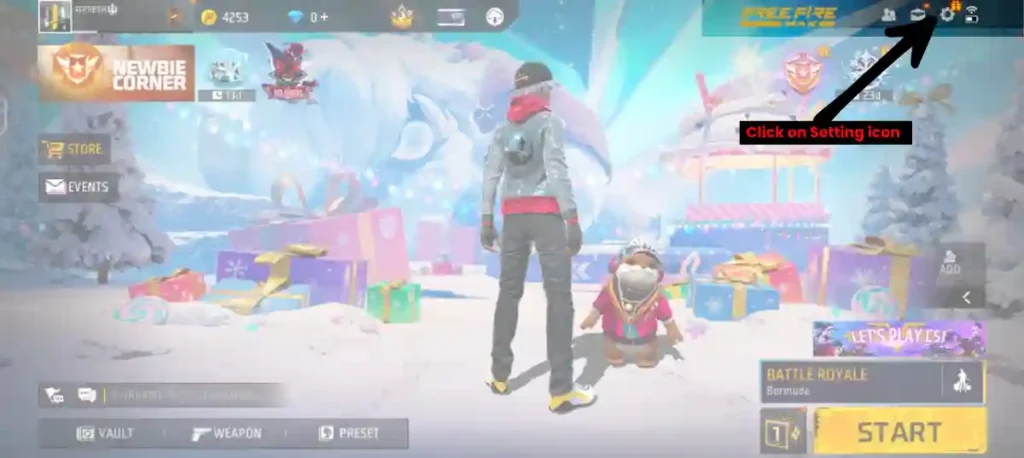
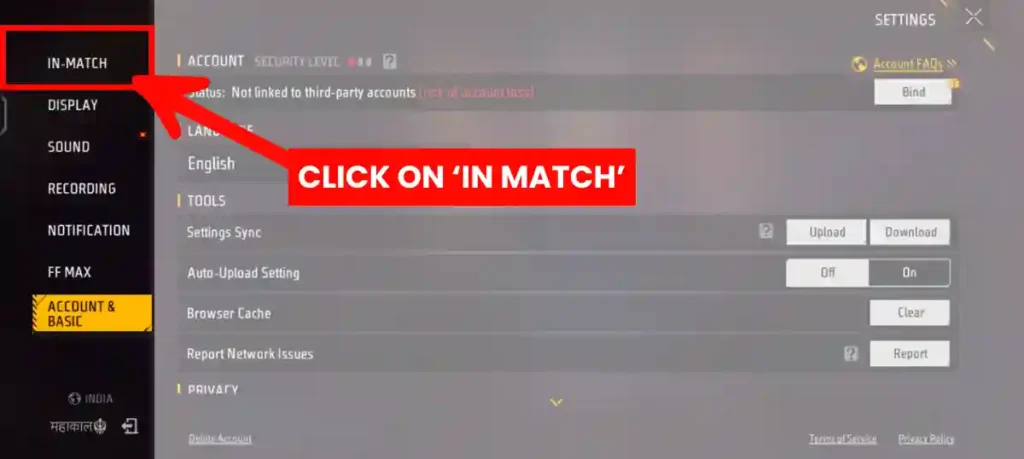
2. Select the “In Match” tab from the left menu.
3. Choose “USE SHARE CODE”
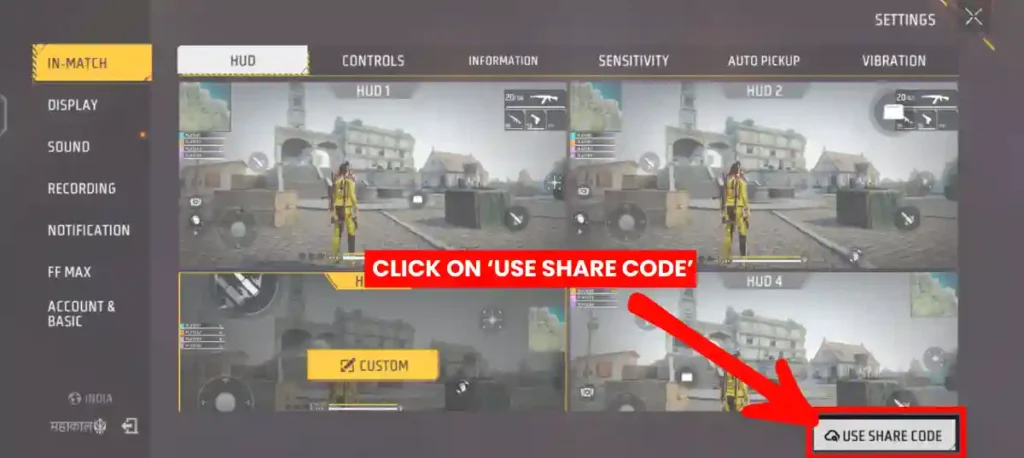
4. Enter the HUD Code:
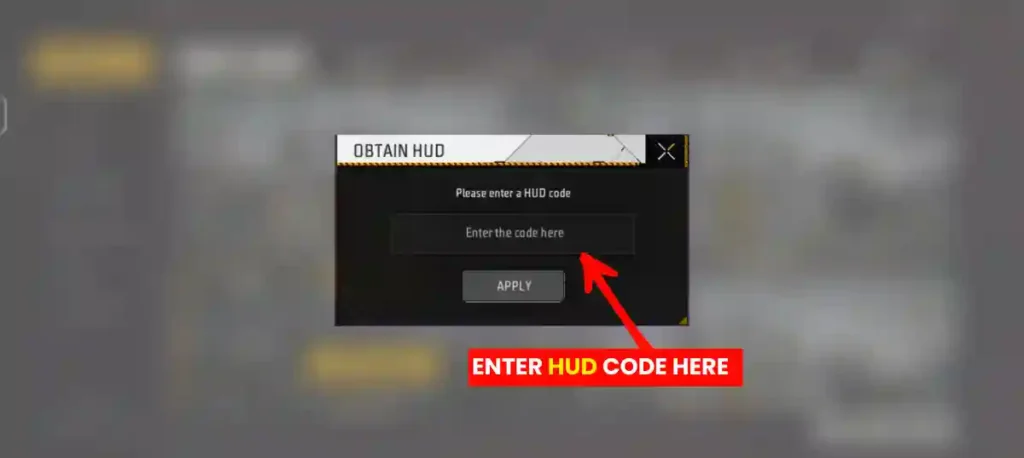
5. Drag buttons to desired positions, resize them by pinching or using sliders, and adjust opacity for visibility
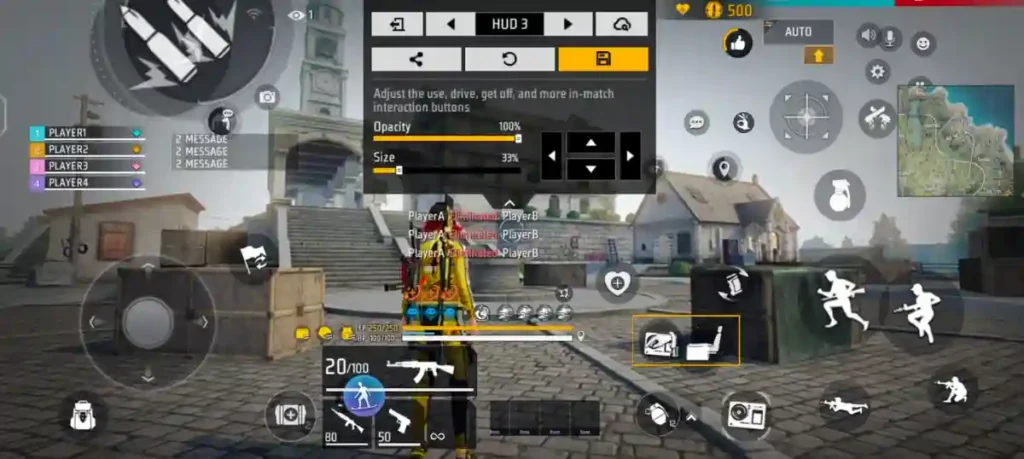
⚠️ Always test your new HUD in Training Mode before playing ranked matches.
In Free Fire, you can save multiple HUD layouts and easily switch between them during the game as needed.
RELATED POST- Free Fire Diamond Top-Up Guide (2026): Safest Methods, Current Prices & Step-by-Step Instructions
Best Custom HUD Code
Here are the most popular 2 Finger, 3 Finger and 4 finger HUD codes that you can copy and use directly in your game:
- 2 Finger- #FFHUDT6O3jjGFRltPo7eP
- 3 Finger – #FFHUDT6O3jjGFRltPo7eM
- 4 Finger – #FFHUDT6O3jjGFRltPo7eO
- Headshot: #FFHUDT6O3jjGFRltPo7eM
Pro Player HUD Codes
| Player/Creator | HUD Code |
|---|---|
| White FF (Brazilian Player) | #FFHUDT603jr6UUgJPo730 |
| Sadx FF | #FFHUDT603jr6UUgJPo7eP |
| Worst 444 | #FFHUDT603jr6UUgJPo7eM |
| 4Flag Gamer | #FFHUDT6O3jjGFRltPo7eO |
| Zerox FF | #FFHUDT7O3jjGFSltPo7eM |
| Raistar | #FFHUDT6O3jjGFRltPo7eM |
| Odisha | #FFHUDT6O3jjGFRltPo7eO |
| Ng Angry | #FFHUDT6O3jpuDfxBPo7eP |
| M1nx | #FFHUDT6O3jpuDfxBPo7eM |
Prioritize a large, semi-transparent fire button positioned for easy upward drags. Place scope near fire for quick ADS (aim down sights). Opacity: 70-90% for combat buttons.
RELATED POST- Top 10 Free Fire Players in India 2025: Who is the No. 1 Pro?
Real Player Statement
A free fire player Avinash Anand (UID- 4019436926) said, he has played Free Fire continuously continuously for almost four years. He has achieved many rank like the Heroic Emblem in Clash Squad. After trying many different HUD layouts over a long period, he found that the 2-finger HUD works best for him.
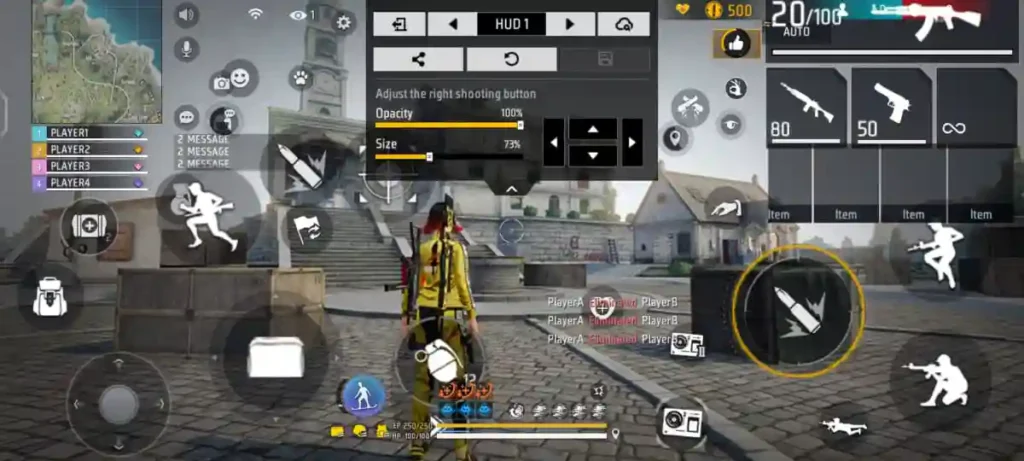
With this setup, his movement stays smooth, accidental touches are reduced, and reaction speed remains better. This example clearly shows that the perfect HUD is the one that suits a player’s comfort and play style.
How to create HUD codes using the HD Code app
- Search “HD Code” on Play Store or App Store.
- You can view HUDs of any player from any server.
- Upload your own HUD code to earn 500 diamonds if it gets enough likes.
Why Players Struggle with Buttons during intense fights
- Mis‑tapping buttons
- Bad luck
- Too many buttons or too few fingers cause mistakes
Why 3‑finger HUD is becoming the most popular
- 3‑finger offers balance between control and simplicity.
- But switching to 3‑finger alone isn’t enough, you need a good HUD layout.
- Sets up the need for Brazilian freestyle HUDs.
RELATED POST- Free Fire All Elite Pass Badge List (Season 1–60)
Frequently Asked Questions
Use 3-finger HUD with scope button above fire button and 70% opacity.
Code: #FFHUDT6O3jjGFRltPo7eM
No. Tablet users should use 4-finger HUD with wider button spacing.
Upload it on HD Code app with a video preview. Top HUDs get 500+ diamonds.
Yes, recent updates support presets.
Generate via share button; import to replicate exactly.
Absolutely for competitive play, though it requires 1-2 weeks of adaptation.
There is no single “best” HUD — it depends on your comfort and playstyle. For competitive ranked matches, 4-finger claw layout is considered the best because it gives you the fastest reaction time and lets you aim, fire, and move simultaneously. If you want a balanced option, 3-finger HUD is the most popular choice right now. And if you are a casual player or just starting out, 2-finger HUD works perfectly fine — many Heroic players still use it. The key is placing the fire button where your thumb naturally rests and keeping the scope button within easy reach.
Setting up a 4-finger HUD is simple. Open Free Fire, go to Settings → In Match → Custom HUD, and use this code: #FFHUDT6O3jjGFRltPo7eO. Once loaded, place the fire button in the top-left corner and the scope/aim button in the top-right corner. Enlarge the movement joystick to around 120% size for better control, and set the fire button opacity to 70% so you can see enemies behind it. Always test it in Training Mode before jumping into ranked matches. It takes about 1–2 weeks to get fully comfortable, but the improvement in your gameplay is worth it.
For beginners, I always recommend starting with a 2-finger HUD or a 3-finger HUD. A player named Avinash Anand (UID: 4019436926) who has been playing for four years and reached Heroic rank in Clash Squad still uses a 2-finger setup because it keeps his movement smooth and reduces accidental touches. If you feel ready for more control, switch to a 3-finger HUD — it offers the perfect balance between simplicity and competitive advantage without the steep learning curve of 4-finger claw. Use code #FFHUDT6O3jjGFRltPo7eM for a beginner-friendly 3-finger layout.
Pro players almost universally use 4-finger claw HUDs with large, semi-transparent fire buttons positioned for easy upward drags (this helps with headshots). They place the scope button very close to the fire button for quick ADS, keep the jump and crouch buttons within thumb reach, and set opacity between 70–90% for all combat buttons. Players like Raistar, White FF, and Zerox FF use similar layouts — you can copy their exact HUD codes from the table above. The biggest difference between pro and casual setups is button size and spacing: pros use larger buttons to avoid mis-taps during intense fights.
Yes, absolutely. Free Fire allows you to copy any HUD layout using share codes. Just go to Settings → In Match → Custom HUD → Use Share Code, enter the code you want (for example, a pro player’s code from the table above), and it will replicate their exact layout on your screen. You can also use apps like HD Code to find and share HUD layouts from top players around the world. However, I strongly recommend testing any copied HUD in Training Mode first. What works for a pro player may not feel comfortable for your hand size or phone screen, so always adjust the button positions slightly to fit your own fingers.
Final Through
By using HUD codes correctly, you can play better in Free Fire and continuously improve your gameplay. Just like mirrors and seats in a new car are adjusted for comfort and safety, a HUD should be set not for appearance but for proper visibility and ergonomics.
When the fire button and other controls are placed where your fingers don’t need to stretch too much and your view of enemies stays clear, control becomes easier. This makes in-game challenges easier to achieve, so keep playing with the right HUD and enjoy Free Fire to the fullest.









There’s definately a lot to know about this topic.
I really like all the points you made.
I am regular visitor, how are you everybody? This article posted at this web site is truly good.
It’s very straightforward to find out about free fire on net as compared to books,
as I found this post at this web page.
Right here is the perfect webpage for anybody who wishes to understand about free fire topic.
An outstanding share! I’ve just forwarded this onto a friend who had been doing a little research on this.
I believe this is one of the such a lot vital info for me.