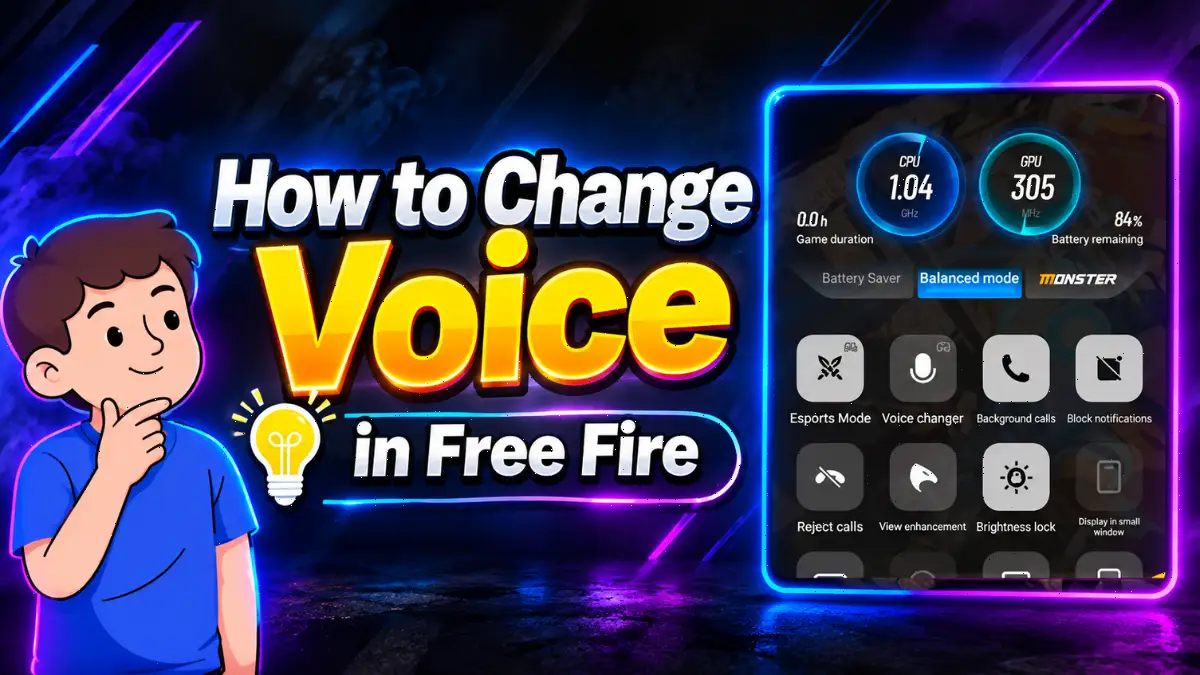
Want to prank your squad with a funny voice or add some entertainment to your Free Fire matches? Many Free Fire player search for best way to change their voice but Garena Free Fire doesn’t include a native voice changer feature in the game.
Mobile operating systems restrict multiple apps from using the microphone at once. In this blog post, we will explain how you can change your voice in Free Fire and what the best method is for doing it. For mobile gamers, finding the right method that actually works can be the biggest challenge.
What Does Changing Voice in Free Fire Mean and Why Do Players Do It?
Changing your voice in Free Fire means altering the audio your teammates hear during live voice chat. Players usually do this for entertainment and to prank their friends. However, you must follow Garena’s strict abuse policy. Offensive words about race, gender, nationality, or religion lead to account suspension. Any reference to terrorism results in an immediate permanent ban.
In a Battle Royale game, voice chat is one of the most important features because it allows you to give your teammates real-time information about the enemy’s location, movement, and how to surprise the enemy.Some players just want to have fun and surprise their squad with a robot or alien voice. It adds a lot of entertainment to long gaming sessions.
But players should always be very careful. When talking with a changed voice, always speak positively. Do not use words that may hurt someone, because according to the official Garena community rules, using abusive language based on personal traits can lead to a report. So, keep your pranks light, funny, and safe.
Can You Change Your Voice Directly in Free Fire?
No, you can’t change your voice directly through Free Fire app. There’s no built-in button or setting in the game menu to alter your microphone audio.
Many players look for a simple toggle in the settings menu. They want to click a button and sound like a cartoon character. Unfortunately, the game developers at Garena haven’t added this feature. They focus on keeping the game lightweight and fast.
How to Change Voice Using Built-in Phone Game Modes?
The only working mobile method is using your phone’s built-in gaming mode. Phones like iQOO, Xiaomi, and Vivo have system-level voice changers. Because this is built into the phone’s operating system, it successfully routes the altered voice into the game’s microphone without causing errors.
Modern gaming phones come with dedicated software to boost performance. For example, Xiaomi has Game Turbo. As detailed in a Filmora Wondershare guide, Vivo and iQOO use Ultra Game Mode. These modes do more than just block notifications. They often include a built-in voice changer tool.
Why Third-Party Mobile Apps Fail for In-Game Chat
When you open Free Fire, the game takes exclusive control of your microphone. A third-party app can’t inject its altered audio into that active stream. You might hear the funny voice in the app itself. But your teammates will only hear your raw, normal voice.
You might see many voice changer apps on the Play Store. They promise to change your voice in any game. However, they almost always fail in Free Fire. This happens because of strict Android and iOS microphone permission limits.
How to Change Voice in Free Fire on PC Emulators?
Playing Free Fire on a PC emulator is the most reliable method. Using software like BlueStacks or LDPlayer allows you to use dedicated Windows tools like Voicemod. These tools intercept the microphone input before it reaches the emulator, working perfectly without mobile restrictions.
PC gaming gives you total control over your audio setup. You can plug in a high-quality USB microphone. Then, you can route that audio through advanced software. Programs like Voicemod offer dozens of high-quality, real-time voice effects. Other tools like HitPaw Voice Changer also provide excellent options for PC users.
The official Voicemod documentation confirms it works flawlessly with mobile games running on Windows. You can sound like a deep demon, a cute chipmunk, or a robotic commander.
Many competitive players prefer this route for better aim and audio control. You can read more about the differences in our Free Fire MAX on laptop vs mobile guide. It’s a massive upgrade from mobile.
Real-World Test: Using iQOO Neo 6 Ultra Game Mode
I want to share my personal experience with this feature. I have an iQOO Neo 6 phone, which I use to play Free Fire. This phone has a great built-in Ultra Game Mode, which includes a Voice Changer option. By clicking on this option, we can change our voice. It has around 5 different types of voice changers that we can use during voice chat.
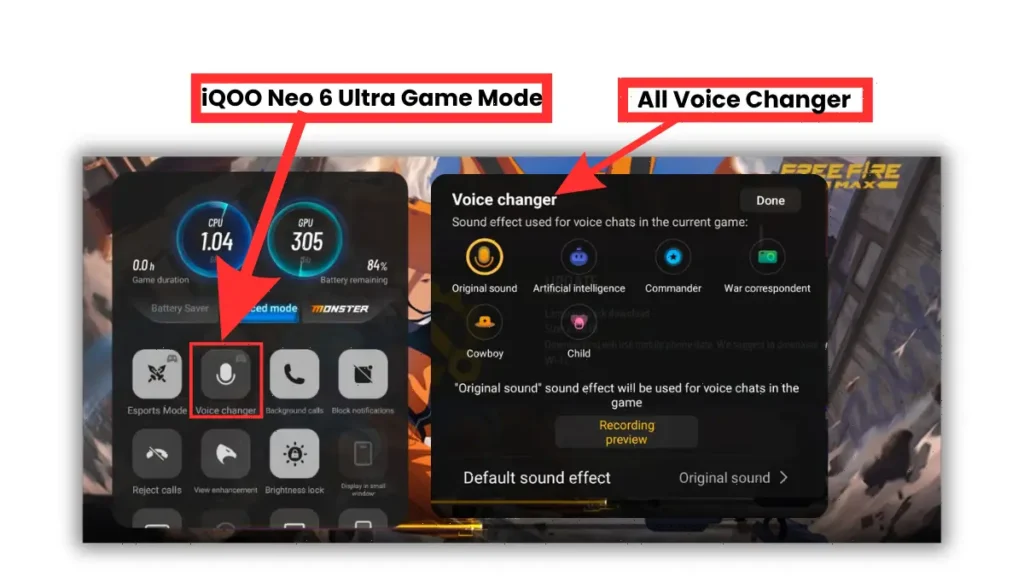
When we start playing Free Fire, the Ultra Game Mode automatically becomes active, and a special menu pops up on the side of the screen. It includes the original voice along with different voice changer options, such as:
- Artificial Intelligence
- Commander
- War Correspondent
- Cowboy
- Child
- Cowboy Chant
When we use this feature, our teammate often gets surprised and asks, “Bro, how are you doing that?” However, this feature works quite well during gameplay.
Final Word
Changing your voice in Free Fire is totally possible if you go through in right way. Use your phone’s built-in features, such as ‘Ultra Game Mode,’ or use a PC emulator. Avoid sketchy mobile apps that waste your storage and risk your account.
Want more tips to dominate the battlefield? Visit Gaming News Lab for more Free Fire guides, the latest esports updates, and in-depth game news. Y
Frequently Asked Questions
It means altering the audio your teammates hear during live voice chat. Players use it for entertainment and to prank their friends during matches.
No, Garena Free Fire doesn’t have a built-in voice changer in the settings menu. You must use your phone’s system game mode or a PC emulator.
Using a safe system-level voice changer won’t get you banned. However, using it to speak offensive words about race, gender, or religion will lead to a temporary or permanent account suspension.