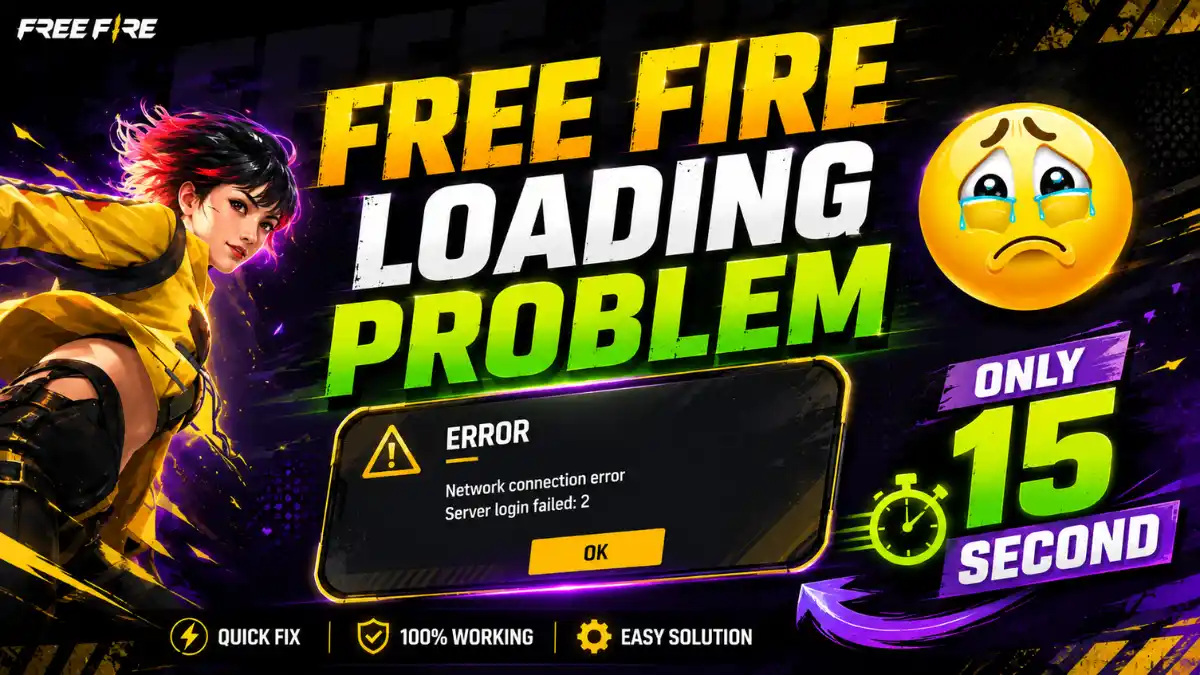
You tap to open Free Fire Max icon in you smartphone. The screen goes black. Or maybe you see the Garena logo and then nothing. Perhaps you get a “Network Connection Error” before the game even opens. Maybe the game loaded 100% and then freezes forever.
After OB54 updates, Many Indian players who use Jio, Airtel, and Vi networks have faced Loading Problem. In this blog post we will cover 15 most common loading problem in ferr fire max that occur during starting the game and playingf match.
15 Common Free Fire Max Loading Problems and Their Reasons
| # | Problem | Likely Reason |
|---|---|---|
| 1 | Game Not Opening (Black Screen or Crash at Launch) | Phone lacks free storage, app cache is corrupted, device is overheating, or a background app is interfering. Free Fire MAX needs at least 2 GB of free space for temporary launch files. |
| 2 | Network Connection Error Popup Before Lobby | ISP may be throttling gaming traffic during peak hours, or the router may have a cached DNS entry blocking Garena servers. |
| 3 | No Network Detected Despite Active Internet | Free Fire MAX may not have permission to use mobile data or Wi-Fi, or the carrier may be blocking Garena server traffic. |
| 4 | Version Conflict / “Failed to Retrieve Version Config” | The installed game version is older than the server version, often due to a missed Play Store update, third-party APK, or Garena hotfix. |
| 5 | Loading Screen Freeze at 50%, 80%, or 100% | Corrupted cache files or a failed network handshake can stop loading. A 100% freeze may also be linked to permissions or battery-saver restrictions. |
| 6 | Facebook Login Failure | Facebook token may have expired, the Facebook app cache may be corrupted, or Free Fire MAX may be connecting to an old Facebook ID. |
| 7 | Google Login Not Working | Google Play Services cache may be outdated, the account token may have expired, or multiple Google accounts may be causing login conflicts. |
| 8 | DNS Block by Indian ISP | The ISP’s DNS may fail to resolve Garena domains, or the ISP may block the IP range used by Free Fire MAX servers. |
| 9 | Private DNS Settings Causing Game Conflict | A custom Private DNS hostname may be offline or incompatible, preventing the game from resolving its gaming domains. |
| 10 | DNS Changer App Not Working or Crashing | DNS changer apps use VPN permissions and can leave the network in a broken state after crashing. They may also conflict with Android Private DNS. |
| 11 | VPN Detected by Garena or Causing Lag | Some VPN IP ranges may be flagged by anti-cheat systems. Free VPNs can also add server hops, increasing ping and causing disconnections. |
| 12 | Proxy Server Blocking Game Traffic | A manually configured Wi-Fi proxy may not support the traffic required by Free Fire MAX, preventing a stable connection. |
| 13 | Wi-Fi Connected But Game Won’t Load | Router firewall rules, parental controls, or restrictions on college, office, and public Wi-Fi may block gaming traffic. |
| 14 | Mobile Data / 4G / 5G Throttled or Dropping | Congested towers may deprioritize gaming traffic. Switching between 4G and 5G can also temporarily interrupt the connection. |
| 15 | Storage Full, Cache Corrupted, Background Data Off, or Play Store Update Pending | Full storage prevents temporary files from being written; disabled background data blocks updates/config files; corrupted cache causes data errors; and pending updates can create version conflicts. |
Why Is Free Fire Max Not Opening on My Phone?
Free Fire Max does not open when your phone lacks free storage, your app cache is corrupted, your Android version is incompatible, or a background app is crashing the game process. This is the most common loading problem in free fire max.
Insufficient storage can interfere with game files and resource downloads, so the phone should have enough free space before launching Free Fire MAX.
Delete unused apps, old videos, or large WhatsApp media files if the device is running low on storage. The exact amount of free space required can vary by device and installation, so the important step is to maintain sufficient available storage rather than rely on a fixed 2 GB requirement.
Once space has been cleared, restart the phone and launch the game again.
Update Free Fire MAX From Google Play Store
Free Fire Max does not open when your phone lacks free storage, your app cache is corrupted, your Android version is incompatible, or a background app is crashing the game process. This is the most common loading error.
Solution 1
Open the Google Play Store, search for Free Fire MAX, and check whether an Update button is available.
If an update is available, install it before trying other advanced fixes. Using an outdated version can contribute to version or configuration-related errors, including the “Failed to Retrieve Version Config” message.
The game should be installed and updated through an official source rather than an unofficial APK website. Garena’s security guidance warns against unauthorized game clients and modified files because they can create account-security and ban risks.
If the game is updated but remains stuck on the loading screen, clearing its cache is one of the safest next steps.
Solution 2
On Android, Follow step by step:
Settings → Apps → Free Fire MAX → App Info → Storage → Clear Cache
Clearing the cache removes temporary files without intentionally deleting the app’s complete local data.
Garena also recommends clearing cache as part of troubleshooting for crashes and technical problems.
After clearing the cache, reopen Free Fire MAX and check the loading screen.
Solution 3
If clearing the cache does not solve the problem, the next option is to clear the app’s data from the same Android settings menu.
Go to:
Settings → Apps → Free Fire MAX → App Info → Storage → Clear Data
This resets the local app data and can require the game to download its resources again.
Before using this option, the Free Fire MAX account should be properly linked to a supported login method rather than being used only as a guest account. Garena warns that guest-account data can be lost in certain situations, while Gaming News Lab also recommends binding the account for better protection.
How Do I Fix Free Fire Max Network Error and No Network Issues?
Network error is a most common issue in Free Fire. This problem is mostly seen when starting the game or during gameplay. Sometimes, a “No Network” or “Network Connection Error” message suddenly appears during gameplay, and the game stops there. After this, the game cannot be played again until the network problem is fixed.
Solution 1:
If you are playing game through Wi-Fi, switch to mobile data. If you are on mobile data, switch to Wi-Fi. Indian ISPs sometimes throttle gaming traffic during peak hours. Jio, Airtel, and Vi users have all reported that switching networks instantly fixes the Connection error.
Also check if you accidentally disabled mobile data for the app. Go to Settings > Apps > Free Fire Max > Mobile Data and Wi-Fi. Make sure both toggles are ON. According to garena, network switching and cache clearing are the most effective first steps for this error.
I have noticed one thing while playing Free Fire. My phone has a full signal, but I still get a network error. In this situation, we usually turn on flight mode and then turn it off to refresh the signal, but the error still appears. However, if we call someone and then start playing the game, the network problem gets fixed, and the game starts working properly again.
What Is Free Fire Max Version Conflict and How Do I Fix It?
In Free Fire, A version conflict happens when your app version does not match the config file Garena’s server is trying to send. You will see errors like “Failed to Retrieve Version Config” or the game will simply refuse to open after an update.
Solution 1:
Update the game from the Google Play Store. Open Play Store, search for Free Fire Max, and tap Update. Never download APK files from third-party websites.
If there is no update button but the error persists, go to Settings > Apps > Free Fire Max > Storage > Clear Cache. If that fails, tap Clear Data. You will need to re-download in-game resources, but your account is safe.
If the error still appears after clearing the data, uninstall the game directly from the Play Store and then install it again. Reports show that version configuration errors increased after the OB54 update, and for many players, a clean reinstall from the Play Store was the only solution.
Why Does Free Fire Max Get Stuck on the Loading Screen?
Free Fire Max gets stuck on the loading screen when corrupted cache files block the game from reading its own data, when your phone runs out of RAM, or when a network handshake fails halfway through. The 100% freeze is the most common form of this problem.
Solution 1:
Force stop the app. Go to Settings > Apps > Free Fire Max > Force Stop. Then clear cache. Restart your phone before reopening the game.
Solution 2:
Second, check that the app has all permissions. Go to Settings > Apps > Free Fire Max > Permissions. Enable Storage, Phone, and Microphone. Without storage permission, the loading bar will hang indefinitely because the game cannot write temporary files.
Solution 3:
Disable battery saver mode. Battery saver restricts background data and CPU speed, which kills the game’s ability to complete its server handshake.
Solution 4:
If you are playing on mobile data, remove and reinsert your SIM card. This forces your phone to refresh its network registration and fixes hidden carrier-level blocks. According to Repairit data, file corruption from incomplete updates is a leading cause of loading screen freezes.
How Do I Fix Free Fire Max Login Problems?
Login problems happen when your Facebook or Google token expires, your Facebook app cache is corrupted, or the wrong account auto-connects without giving you a choice. The fastest fix is to log out of the Facebook app completely, then try logging into Free Fire Max again.
If you are stuck in a login loop, switch your login method. Tap the gear icon on the login screen and switch from Facebook to Google or Garena. If your account is linked to multiple platforms, this bypasses the broken token. You can also clear the Facebook app’s cache separately. Go to Settings > Apps > Facebook > Storage > Clear Cache.
Some players report that Free Fire Max auto-connects to an old Facebook ID with no option to change it. If this happens, open your phone browser, go to Facebook.com, log out of all accounts, then log back in with the correct ID. Return to the game and tap Facebook login again. If all login methods fail, you can use Free Fire Max guest accounts as a temporary way to access the game while you fix the platform issue.
How Do I Fix DNS, Private DNS, and DNS Changer Issues in Free Fire Max?
DNS issues happen when your Indian ISP blocks or throttling Garena’s server routes. Changing your DNS bypasses these routing problems and often fixes loading issues instantly.
To set up Private DNS on Android, go to Settings > Network and Internet > Private DNS. Select “Private DNS provider hostname” and enter dns.google. Tap Save. Restart your phone, then open Free Fire Max. If your phone does not have a Private DNS option in settings, download a trusted DNS Changer app from the Play Store. Look for apps with high ratings and no excessive permission requests.
Another solid option is WARP 1.1.1.1 by Cloudflare. It works like a light DNS tool and routes your traffic around ISP blocks without the ping penalty of a full VPN. A Reddit user in the Free Fire community reported that changing DNS fixed their loading problem instantly. For a full walkthrough on network tools, check our Free Fire proxy server setup guide.
Should I Use a VPN or Proxy Server to Fix Free Fire Max Loading?
If there is a routing problem in your area or Garena servers are partially blocked than VPN can help. However, a bad VPN can increase your ping and may also get your account banned.
If you need a VPN, use Cloudflare’s WARP 1.1.1.1. It is free, fast, and made for gaming. Avoid suspicious free VPNs that show too many ads or sell your data. Never use a VPN that changes game files or modifies APK data to claim better performance. Under Garena’s abuse policy, accounts using unauthorized tools can be banned permanent.
The risk is similar with proxy servers. Use only trusted proxy configurations. If you are using a proxy and the game stops loading, disable the proxy before trying any other method. For most Indian players, changing the DNS can fix routing problems without the ping issues that can come with a full VPN or proxy.
For most Indian players, a DNS change fixes routing issues without the ping penalty of a full VPN. If you do use a VPN, connect to a Singapore or Mumbai server for the lowest latency. After you fix your loading issue, make sure your controls are dialed in properly. Check out our best Free Fire control settings guide to optimize your HUD and sensitivity.
Restart, Reboot, and Network Refresh for Free Fire Max
Sometimes the simplest fix is the right one. If Free Fire Max is not opening or showing no network, restart your phone. A full reboot clears temporary memory, closes stuck background processes, and refreshes your network connection.
If you are on Wi-Fi, restart your router. Unplug it for 30 seconds, then plug it back in. This fixes router-level DNS caching that might be blocking Garena’s servers. If you are on mobile data and switching between 4G and 5G did not work, remove your SIM card and reinsert it. This forces your carrier to re-register your device on the network tower, which fixes many “No Network” errors that look like game problems but are actually carrier issues.
How to Clear Cache, Clear Data, and Fix App Info and Storage Issues
When nothing else works, you need to clean the app’s data manually. Go to Settings > Apps > Free Fire Max > App Info. Here you will see Storage. Tap it. You will see two buttons: Clear Cache and Clear Data.
Always start with Clear Cache. This deletes temporary files without touching your account. If the problem persists, tap Clear Data. This resets the app to its fresh-install state. You will need to re-download the in-game resource pack, but your account progress is safe because it is stored on Garena’s servers.
While you are in App Info, check that Background Data is enabled. Go to Settings > Apps > Free Fire Max > Mobile Data and Wi-Fi. Make sure “Background data” is turned ON. If background data is disabled, the game cannot download updates or config files while you are on the loading screen, which causes freezes and version errors. Also check that you have at least 2 GB of free storage. Without enough space, Clear Cache will not help because the game has nowhere to write new files.
When Nothing Fixes the Free Fire MAX Loading Problem
If Free Fire MAX still cannot load after the device, app, network and login checks, the remaining issue may require account-level or game-support assistance.
Keep the Free Fire UID available and contact Garena Support with details of the problem, including the error message or point at which the loading process stops.
The troubleshooting process should begin with the simplest fixes—restart, storage, update, cache and network and move toward more disruptive steps such as clearing app data only when necessary.
Final Word
Loading problem in Free Fire MAX does not always have a single cause. A failed launch or frozen loading screen can involve temporary app data, an outdated installation, limited storage, restricted background access, network connectivity, login problems or device conditions.
If your game loads but still lags, check out our Free Fire lag fix for low-end devices guide. If none of these fixes work, check your Free Fire UID and submit a ticket to Garena through their official help center.
Frequently Asked Questions
Free Fire Max won’t open if your phone has less than 2 GB free storage, the app cache is corrupted, your phone is overheating, or a background app is interfering. Start by freeing storage and clearing cache.
Switch from Wi-Fi to mobile data or vice versa, enable airplane mode for 10 seconds, or restart your phone. Also check that mobile data is enabled for the app in Settings > Apps > Free Fire Max > Mobile Data.
No. Your account progress is stored on Garena’s servers. Clearing data only removes local files. You will need to re-download in-game resources, but your rank, skins, and friends list are safe.
Google DNS (dns.google) and Cloudflare DNS (1dot1dot1dot1.cloudflare-dns.com) work best. Set them in Settings > Network and Internet > Private DNS, or use the WARP 1.1.1.1 app.
This happens when your app version is outdated or you installed from an APK instead of the Play Store. Update the game from Google Play Store, or clear cache and data if the update button is not showing.