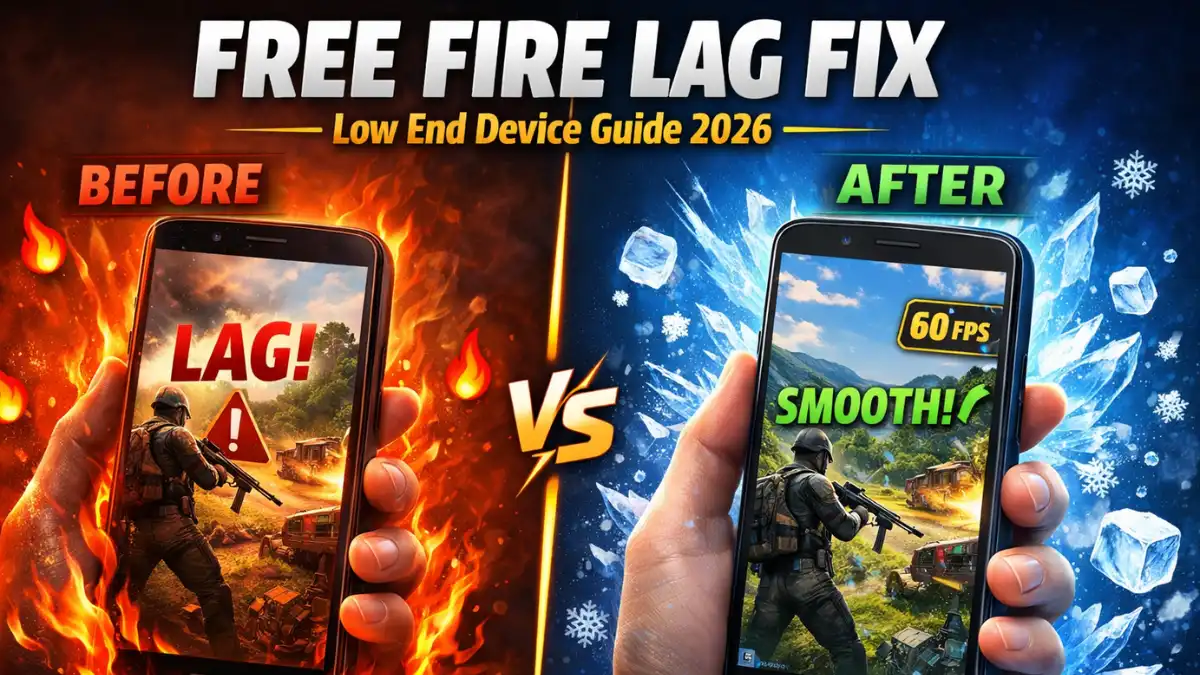
Free Fire lags on low-end devices mainly because of high GPU demand, background apps eating your RAM, and phone overheating not storage issues. The real fix: set graphics to Smooth + High FPS inside the game, close all background apps, enable your phone’s built-in Game Mode (Game Turbo, Game Space, or Game Booster), and keep your phone cool. Skip GFX tools entirely Garena’s official Abuse Policy can permanently ban your account for using them.
You’re in the final circle. One enemy left. You line up the perfect shot. Then your screen freezes for two full seconds. You die. Your squad loses. And your phone is too hot to hold.
If you play Free Fire on a low-end device, you know this pain. I’ve been playing Free Fire since 2017, and the one thing I keep noticing is that heating is the #1 performance killer even more than storage or network. But most guides skip right past it.
This isn’t another generic list. This guide gives you a Free Fire lag fix for low-end devices that actually works: a diagnostic flowchart, exact in-game settings, brand-specific Game Mode steps for Xiaomi, Realme, and Samsung, a clear answer on Developer Options safety, and a hard truth about GFX tools you need to hear.
Head over to our Free Fire hub for more guides like this. Now, let’s fix your lag.
Why Does Free Fire Lag on Low-End Devices?
Free Fire lags on 1–4 GB RAM phones because the game’s graphics engine demands more CPU and GPU power than budget processors can deliver at full speed. Background apps steal the remaining RAM, and when the phone heats up, the processor deliberately slows itself down to prevent damage, a process called thermal throttling.
That’s the real chain reaction behind your lag. Not storage. Not bad luck.
Here’s how to figure out which problem is hitting you hardest. Run through this quick diagnostic before touching any settings:
Lag Cause Diagnostic Flowchart
START: Is Free Fire lagging or dropping frames?
│
├─ Does your phone feel HOT to the touch while playing?
│   ├─ YES → Main cause: Thermal throttling. Jump to the Thermal section.
│   └─ NO → Continue below.
│
├─ Did you close all background apps before launching?
│   ├─ NO → Main cause: RAM overload from background processes. Jump to the Optimization section.
│   └─ YES → Continue below.
│
├─ Is your in-game graphics set to anything above Smooth?
│   ├─ YES → Main cause: GPU overload. Jump to the In-Game Settings section.
│   └─ NO → Continue below.
│
└─ Is your battery below 20%?
    ├─ YES → Main cause: Battery saver mode throttling your CPU. Charge to at least 50% first.
    └─ NO → Apply all steps from this guide top to bottom.
A quick note on storage: Free Fire grabs the space it needs at install time. Freeing 4–6 GB helps your phone read/write data a little faster, but it won’t stop frame drops caused by RAM pressure or heat. Clear it as a maintenance habit, not as your main fix.
What Are the Best In-Game Settings to Fix Free Fire Lag?
Set your in-game graphics to Smooth, FPS to High, and turn off Auto-adjust graphics. This single change removes the biggest GPU load from your device and is the most impactful step for low-end phones no app downloads, no root, no risk.
Here’s the exact menu path: Free Fire → Settings (top right) → Graphics tab
| Setting | What to Set | Why |
|---|---|---|
| Graphics Quality | Smooth | Lowest GPU load; most stable frame rate |
| Frame Rate | High (60 FPS) | Smoother gameplay without overloading CPU |
| Auto-adjust Graphics | OFF | Prevents the game from switching settings mid-match |
| Shadow | OFF | Shadows are expensive for weak GPUs |
| Anti-aliasing | OFF | Reduces rendering load on 2 GB RAM devices |
Expected FPS gain by RAM tier:
| RAM | Before Fix (avg FPS) | After Fix (avg FPS) | Notes |
|---|---|---|---|
| 2 GB | 18–25 FPS | 40–50 FPS | Keep all extras OFF; close every background app |
| 3 GB | 25–35 FPS | 50–60 FPS | Can enable High FPS mode reliably |
| 4 GB | 35–45 FPS | 55–60 FPS | Stable 60 FPS achievable with Game Mode |
As IKComplo’s 2026 low-end device guide confirms, these settings reduce lag and maintain steady FPS on budget hardware. Pair them with the device steps below and you’ll feel the difference immediately.
How to Optimize Your Android Phone Before Every Session
Close all background apps, clear your Free Fire cache, and disable Bluetooth and GPS before you launch the game. These steps free up RAM and reduce background network usage — two of the biggest causes of stutters on low-end devices.
Here’s a Storage Audit Checklist with exact steps for the three most popular budget phone brands:
Samsung (Galaxy A-series, J-series, M-series):
- Settings → Device Care → Memory → Clean Now
- Settings → Apps → See All Apps → Free Fire → Storage → Clear Cache
- Settings → Apps → sort by Size → uninstall apps you haven’t used in 30+ days
- Enable Game Booster: Settings → Advanced Features → Game Launcher → toggle ON
Redmi / Xiaomi (Redmi 9A, Note series, Redmi A-series):
- Security app → Cleaner → Scan → Deep Clean
- Settings → Apps → Manage Apps → Free Fire → Clear Cache
- Settings → Additional Settings → Developer Options → scroll to “Memory” → check Running Services — close anything that isn’t a system app
- Check Virtual RAM: Settings → Additional Settings → RAM Expansion → enable (adds 2–4 GB virtual RAM using storage; restart required)
Poco (Poco C-series, M-series):
- Security app → Cleaner → Deep Clean
- Settings → Apps → Free Fire → Storage → Clear Data (cache only, not full data)
- Settings → Additional Settings → RAM Booster (if available) → enable
- Game Turbo: Settings → Special Features → Game Turbo → add Free Fire
Pro tip on Virtual/Extended RAM: Many people don’t know this feature exists. If your Redmi, Poco, or Xiaomi phone shows 6 GB RAM but still lags, check Settings → Additional Settings → RAM Expansion. On most MIUI/HyperOS devices, you can add 2–4 GB of virtual RAM using your storage. Enable it, restart your phone, and relaunch Free Fire. You’ll notice a real difference.
Brand-Specific Game Mode Instructions: Xiaomi, Realme, and Samsung
Every major budget phone brand ships with a built-in Game Mode. These apps get deeper access to your device’s hardware than any third-party booster ever could. If you’re not using them, you’re leaving performance on the table.
Xiaomi / Redmi / Poco – Game Turbo (MIUI and HyperOS):
- Open the Security app → tap Game Turbo
- Tap the “+” button and add Free Fire to your game list
- Tap the gear icon (top-right) → Settings
- Enable: Performance Priority mode (boosts CPU + GPU clocks)
- Enable: Block Notifications (no pop-ups mid-match)
- Enable: Auto-reject calls (calls won’t interrupt your game)
- Enable: Lock Brightness (stops auto-brightness from running in the background)
While in-game, swipe from the left edge to pull up the Game Turbo overlay. You can switch between Balance, Performance, and Monster modes on the fly. For a 2–4 GB Redmi, Balance mode usually gives better sustained FPS than Monster mode, because Monster pushes the CPU so hard it heats up and throttles within minutes.
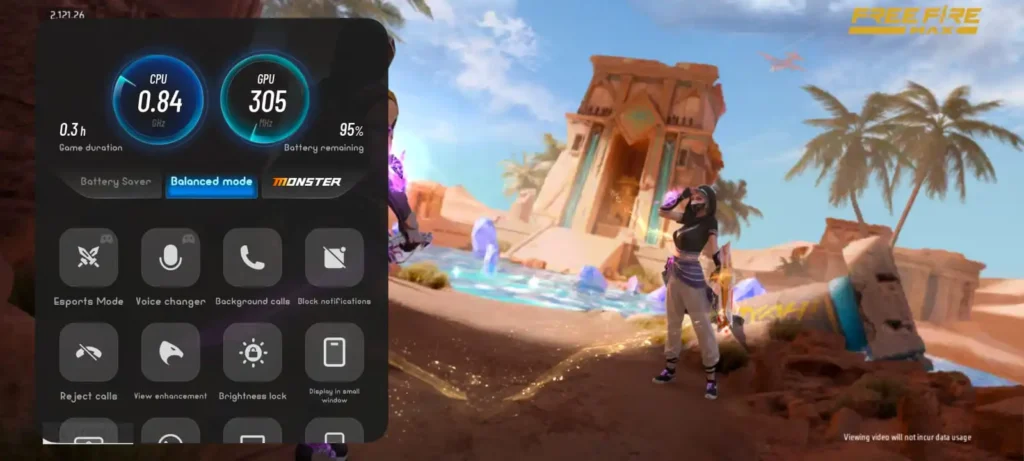
According to Xiaomi’s official Game Turbo documentation, the 2025 HyperOS update integrated Game Turbo directly into the Security app with improved RAM allocation and thermal management.
Realme — Game Space:
- Settings → Additional Settings → Game Space → toggle ON
- Add Free Fire to the game list Inside Game Space overlay (swipe from left while in-game):
- Enable Focus Mode (blocks notifications)
- Enable DND (silences calls)
- Set performance to High Performance
- Enable Enhanced Touch for better response
Samsung — Game Booster:
- Settings → Advanced Features → Game Launcher → toggle ON
- Open Game Launcher → tap Free Fire
- Before launching, tap the three-dot menu → Prioritize performance → Performance Mode
- While in-game, swipe up from the bottom to open Game Booster overlay
- Enable: Block during game (notifications + calls)
- Enable: Screen touch lock sides (prevents accidental taps)
Budget gaming tests on Samsung and Realme devices show measurable FPS improvements when using the manufacturer’s built-in tools over third-party boosters. These tools access your phone’s “guts” that outside apps simply can’t touch.
Is Developer Mode Safe for Free Fire? What You Need to Know
Enabling Developer Options on your Android phone is completely safe by itself. The menu alone does nothing. The risk comes from which settings you change inside it, some can trigger app bugs, drain your battery faster, or behave unpredictably with banking and messaging apps.
Here’s the honest breakdown for Free Fire players:
What’s worth enabling (safe, effective):
- Window Animation Scale → 0.5x: Makes your phone’s UI transitions twice as fast. Your phone feels snappier. This doesn’t increase in-game FPS, but it reduces the time spent between app switching. Set to 0.5x, not Off. MakeUseOf’s 2026 guide recommends 0.5x as the sweet spot.
- Transition Animation Scale → 0.5x: Same as above; reduce to 0.5x.
- Animator Duration Scale → 0.5x: Same. All three together make your device feel noticeably faster.
- Background Process Limit → At most 2 processes: Forces Android to close background apps more aggressively, freeing RAM for Free Fire. BitTopup’s performance tests show this helps free RAM for game texture caching on 2 GB devices.
What to avoid:
- “Don’t Keep Activities”: This kills every app the moment you leave it. WhatsApp, banking apps, and your phone’s own system processes will behave erratically. Don’t touch this.
- “Force 4x MSAA”: Forces 4x anti-aliasing on all apps. On a low-end phone, this will actually increase lag because it multiplies GPU work. Leave it off.
Safety note for banking and messaging apps: Enabling the background process limit means apps like WhatsApp and your bank app will need to reload from scratch each time you return to them. This is fine for most users. However, if your banking app uses background processes for OTP delivery or session security, test it after enabling the limit. If notifications break, revert the setting to Standard Limit.
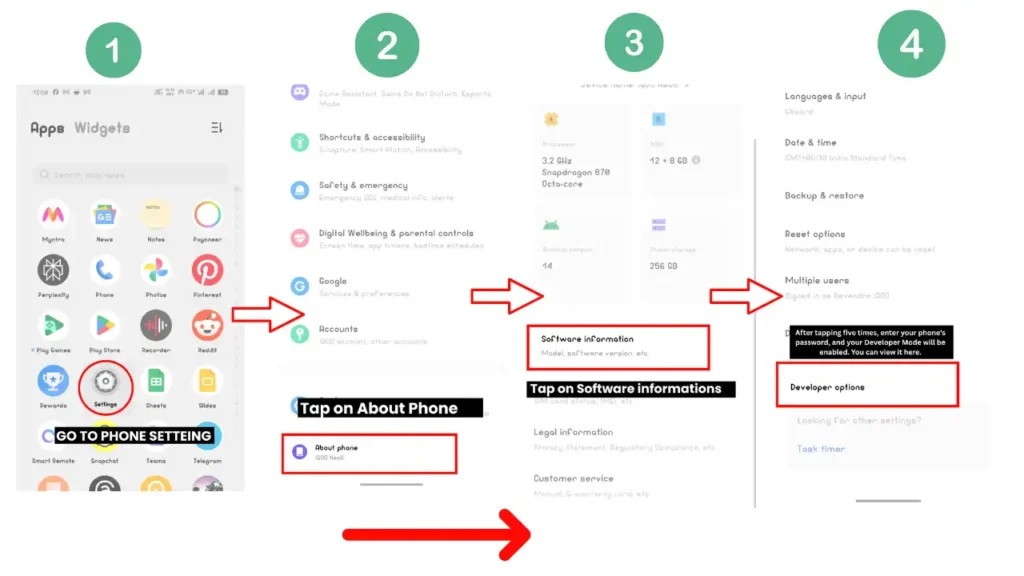
To enable Developer Options: Settings → About Phone → tap Build Number 7 times → enter your PIN if prompted → Developer Options will appear in Settings.
Why GFX Tools and Third-Party Boosters Can Get You Banned
GFX tools are third-party apps that modify Free Fire’s configuration files to unlock graphics options or boost FPS. They sound helpful. But Garena’s official Abuse Policy is explicit: using unauthorized tools that interact with the game client is a bannable offense — and the ban is permanent with no appeal.
Here’s the exact rule: Garena classifies any tool that accesses or modifies the game’s APK or .ini files as an unauthorized third-party program. As Sportskeeda’s fact-check confirmed, GFX tools fall directly into this category because they interfere with game files to deliver their performance claims.
The risk isn’t just theoretical. Garena bans millions of accounts per week. The system flags account behavior automatically, and Garena does not reverse bans once applied even for long-time players or content creators.
You’ve worked hard on your Free Fire account. Before you check your Free Fire UID status after a suspicious ban, know this: GFX tools are never worth the risk.
What to use instead: Everything in this guide. In-game Smooth settings, your phone’s built-in Game Mode, Developer Options animation tweaks, and thermal management together deliver the same or better performance than GFX tools with zero ban risk.
How to Stop Your Phone From Overheating During Free Fire
Overheating is the single most damaging lag cause that most guides skip. When your phone gets too hot, the processor deliberately slows itself down to prevent hardware damage. This is called thermal throttling, and it’s why your game runs fine for 10 minutes and then turns into a slideshow.
I’ve been playing Free Fire since 2017, and I noticed this pattern years before I understood the technical reason: the game always ran smoother in winter than in summer. The ambient temperature of the room you’re in directly affects how fast your phone heats up and throttles. In hot weather, even a perfectly optimized phone will struggle after 20–30 minutes of continuous play.
Thermal management tips:
- Never play while charging on a low-end device. Your phone generates heat from both gaming AND charging simultaneously. This doubles the thermal load and causes throttling within minutes. Charge to at least 60% first, then unplug before playing.
- Keep battery above 20% before starting. Below 20%, most phones switch to battery saver mode, which throttles your CPU to protect battery life — causing instant lag spikes.
- Change your gaming spot based on season. Sit near a fan or AC vent in summer. Avoid playing with your phone in direct sunlight or resting on surfaces that retain heat (like bed pillows or sofas).
- Take a 5-minute break every 30–45 minutes. Let your phone cool down between matches. This resets thermal throttling and restores full CPU speed.
- Remove your phone case while gaming. Cases trap heat. Even removing a silicone case for gaming sessions makes a measurable difference on budget phones.
On cooling pads: Physical cooling pads (the kind that clip to your phone) do work and can reduce phone temperature by 5–10°C during gaming. If you’re a serious daily player, it’s worth the investment especially for summer. If you just game casually, the tips above are enough.
Best Sensitivity Settings for Low-End Free Fire Devices
Sensitivity settings affect how responsive your aim feels — and on low-end devices, settings that are too high cause erratic aim and increase the processing load on touchscreen rendering. Here are the values that work best by RAM tier, tested across multiple low-end Android devices in 2026:
| Setting | 2 GB RAM | 3 GB RAM | 4 GB RAM |
|---|---|---|---|
| General | 150–170 | 160–180 | 175–195 |
| Red Dot | 165–185 | 175–190 | 185–200 |
| 2x Scope | 150–170 | 160–178 | 170–188 |
| 4x Scope | 140–160 | 150–170 | 160–175 |
| AWM Scope | 135–155 | 145–165 | 155–170 |
| Free Look | 180–195 | 185–200 | 190–200 |
These are starting points — not fixed rules. Sensitivity is hardware-dependent. What works on a 4 GB Redmi Note won’t feel right on a 2 GB Redmi Go. Start at the lower end of each range, practice in Training Mode for 10–15 minutes, then adjust up or down by 5 points at a time.
Once your lag is fixed and your phone runs smoothly, your next step is dialing in your aim properly. We’ve put together a complete Free Fire headshot sensitivity guide for Android that covers drag shots, one-tap technique, and beginner-friendly configs. For the full picture on controls and layout, check our best Free Fire control settings and HUD guide because smooth gameplay only matters if your controls are set up right.
Final Thoughts
Free Fire lag on low-end devices is fixable. You don’t need root access. You don’t need paid apps. And you definitely don’t need GFX tools that put your account at permanent risk.
Explore more Free Fire tips, redeem codes, and performance guides on our Free Fire section. Got a specific budget phone that’s still giving you trouble? Drop it in the comments, we’ll help you dial it in.
Also check today’s Free Fire redeem codes for free diamonds and rewards, and stay tuned to our How-To guides for more gaming performance tips.
Frequently Asked Questions
Clearing storage has a small, indirect impact on Free Fire lag. The game claims the space it needs at install time, so freeing storage doesn’t directly improve frame rates.
Yes, it can. Garena’s official Abuse Policy explicitly classifies unauthorized tools that interact with the game client as bannable offenses. GFX tools modify Free Fire’s configuration files, which puts them in this category.
Enabling the Developer Options menu itself is completely safe and does not void your warranty.
The most effective steps are: never play while your phone is charging (heat stacks from both gaming and charging), keep your battery above 20% before a session, remove your phone case during play, and take a 5-minute break every 30–45 minutes.
For 2 GB RAM devices, keep sensitivity on the lower side to prevent erratic aim and reduce touchscreen rendering load.