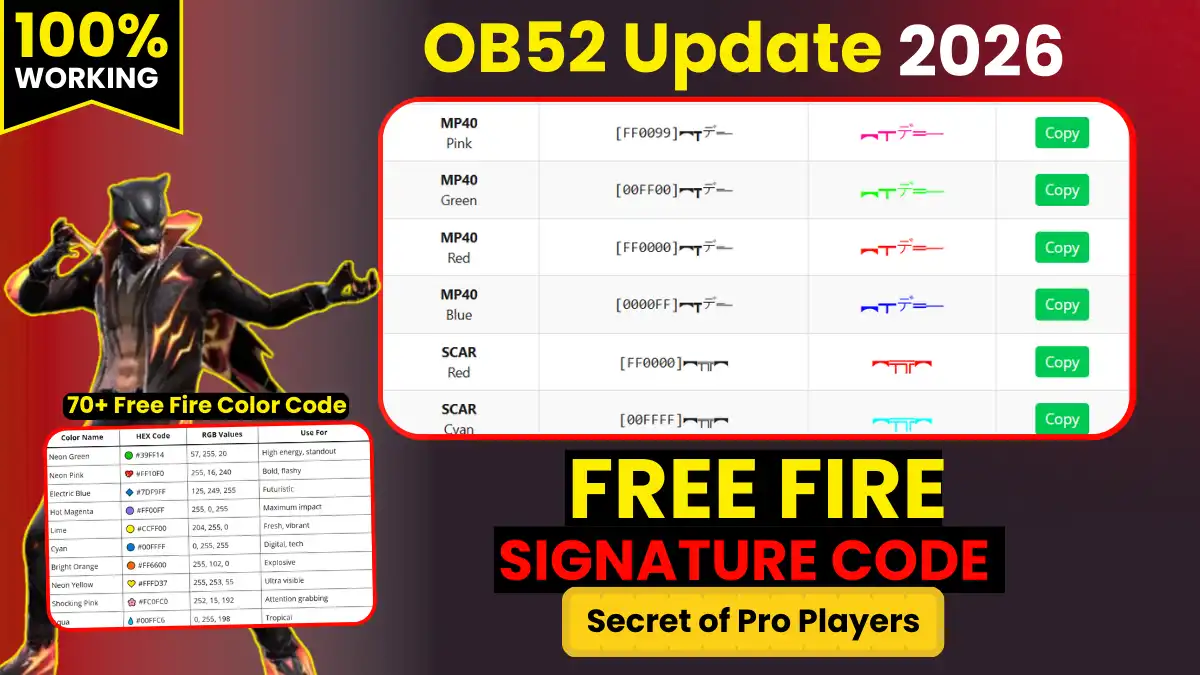
For the last seven years, I’ve been playing Free Fire. When the game launched in India in 2017, there was no such thing as a Signature Code. Gradually, when Garena added custom bios and in-game text features, players started asking, “Hey, how do you write these colored names? Where do these symbols come from?”
I personally watched hundreds of YouTube videos, explored Discord servers, and through a lot of trial and error, I finally understood how this system works. Today, I’m writing it all down in this complete guide.
What Are Free Fire Signature Codes?
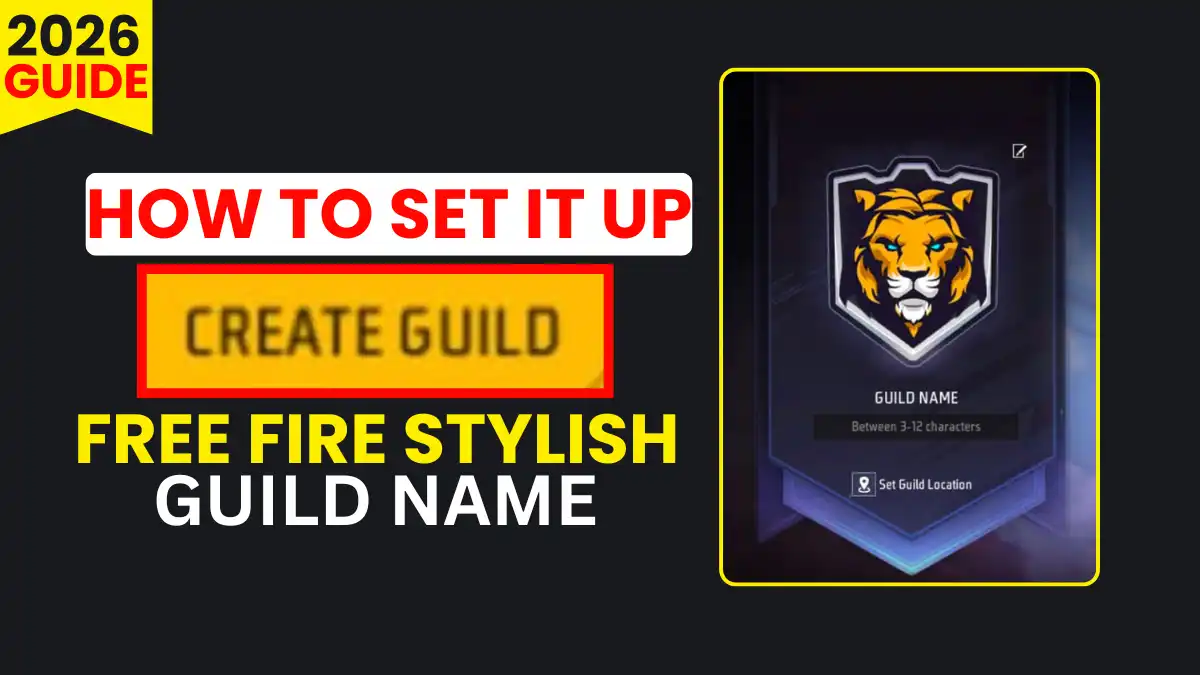
Free Fire Signature Code is a special text formatting system that gives you the power to write colored text, bold letters, and unique symbols in your Profile Bio, Guild Description, and In-Game Messages.
Simply put, it’s the “secret language” that Pro Players use to elevate their profile from ordinary to extraordinary.
There are three main types of Signature Codes:
- Color Codes (HEX-based): To convert text to any color.
- Style Codes: To make text bold, italic, or underlined.
- Symbol Codes: Special Unicode characters that are not found on a normal keyboard.
When you open a Pro Player’s profile and see their Bio, which has stylish text written with red bold letters, symbols like ✦, and V Badge, it’s all because of Signature Codes.
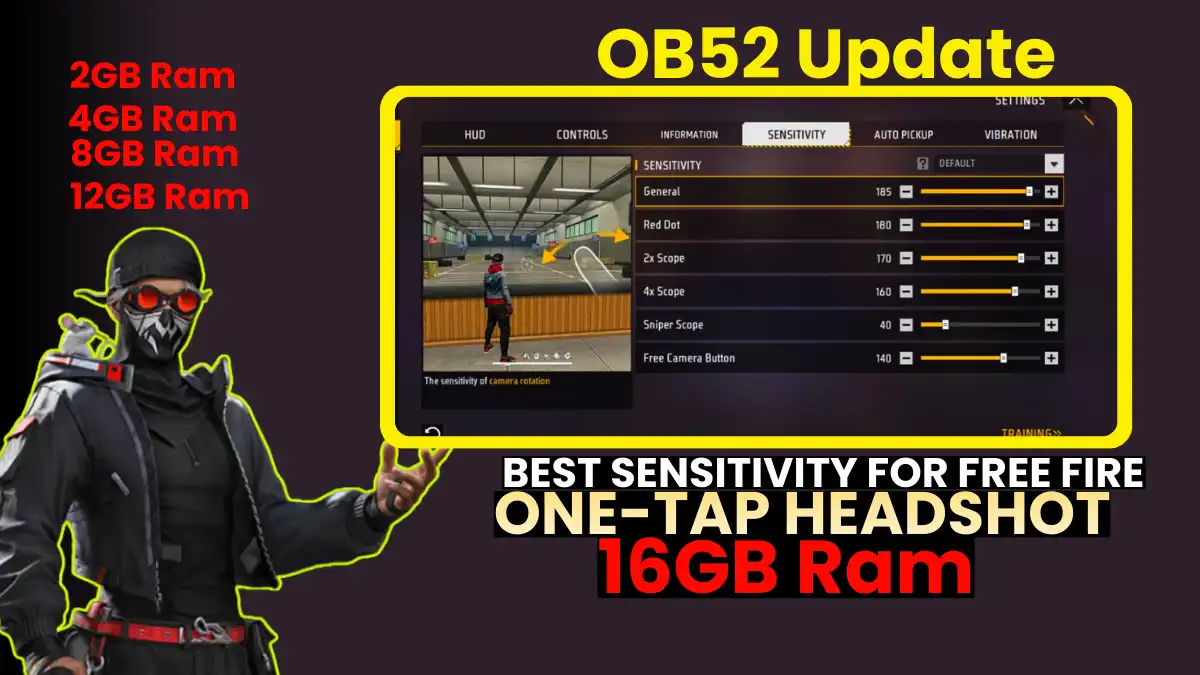
While customizing your profile makes you stand out visually, you should also optimize your Free-Fire controls to ensure your gameplay reflects the confidence your bio shows.
How does Free Fire Text Rendering work?
This section is a bit technical, but once you understand it, you’ll be able to create codes yourself without relying on any tools.
Free Fire’s text rendering engine is based on Garena’s Custom UI Framework, which uses HTML-style tag parsing. This isn’t like CSS, but rather a simplified markup language.
Text Rendering Flow (Step-by-Step):
Your Input Text
        ↓
[Parser Engine — Scans tags]
        ↓
[HEX Color Validator — Valid color check]
        ↓
[Unicode Processor — Special chars convert]
        ↓
[Renderer — Final output on the screen]
        ↓
Styled text that appears on your profile
Free Fire’s text system uses UTF-8 encoding. When you type [c][#FF0000], the engine processes it like this:
- [c] → Introduction to color tags
- [#FF0000] → HEX color value (Here FF=Red, 00=Green, 00=Blue)
- [-] → End of Tag/ Color reset
This is why entering an incorrect HEX value results in black text (default). The engine rejects the invalid color and reverts to the default.
Character Limit: A maximum of 256 characters are allowed in the Free Fire bio – this also counts hidden tag characters. Therefore, very long codes truncate the bio.
RELAETD POST- Free Fire Bio Style Code LOVE ❤️ 101 Ready-to-Copy Romantic Colour Bios (2025)
How to Add Signature Codes? (Step-by-Step Guide)
Here I’m sharing the exact steps I used myself. No guesswork.
Method 1: Direct In-Game Entry
Step 1: Open the Free Fire app and go to your profile.
Step 2: On the Profile page, tap the “Edit” button (Pencil icon).
Step 3: Tap the “Signature” or “Bio” field.
Step 4: Type or paste your desired code. Example:
[c][#FF4500]⚡ HUNTER ⚡[-][c][#FFFFFF] | Pro Player[-]
Step 5: Click “Save” and check the profile.
Method 2: External Keyboard (Copy-Paste)
This method is for players who want to use complex codes.
Step 1: Write the code in your mobile’s Notes app or a text editor.
Step 2: Select and copy the entire code.
Step 3: Open the Bio field in Free Fire and paste it.
Step 4: Check the preview once before saving.
Method 3: PC Emulator (BlueStacks)
For BlueStacks players, the simplest approach is keyboard input and code usage.
Important Rules:
- Every opening tag must be followed by a closing tag [-].
- Nested tags (tags within tags) are not supported in Free Fire.
- Mixing color codes with emojis sometimes causes rendering issues.
Full HEX Color Codes List 2026
If you want to make your Free Fire profile unique and stylish, be sure to read our article “70+ Free Fire Color Code Master List with HEX Values.” Here, you’ll find over 70 ready-to-use HEX and RGB color codes, which you can directly copy and use in your name or bio.
This guide is perfect for giving your profile a unique look with Indian swag, attitude, and shayari. Copy, mix, and match the 70+ codes below to your liking to create a strong identity.
ALSO READ- How to Add a Gun Bio Code to Your Free Fire Profile (2026 Guide)
Final Words
When I started playing Free Fire 7 years ago, I had no idea it would become such a huge part of my life. I’ve played thousands of games, created hundreds of squads, and learned so much from this community.
Trying the wrong codes, fearing an account ban, or simply not knowing how pro players create such cool profiles. Now you have all the information. Use it. Experiment. And yes, keep Booyahing.
Frequently Asked Questions
Yes, it’s absolutely safe. This is an official in-game feature from Garena. There’s no chance of getting banned. Just avoid using third-party hack tools.
Yes, Android, iOS, and PC Emulator (BlueStacks) all work.
Works in Bio and Guild Description. Color codes do not work in normal game chat.
No. Free Fire only accepts the HEX format (#RRGGBB). RGB is not directly supported.
Technically, there’s no limit, but the character limit (256) is a practical limit. More than 3-4 colors rarely fit.