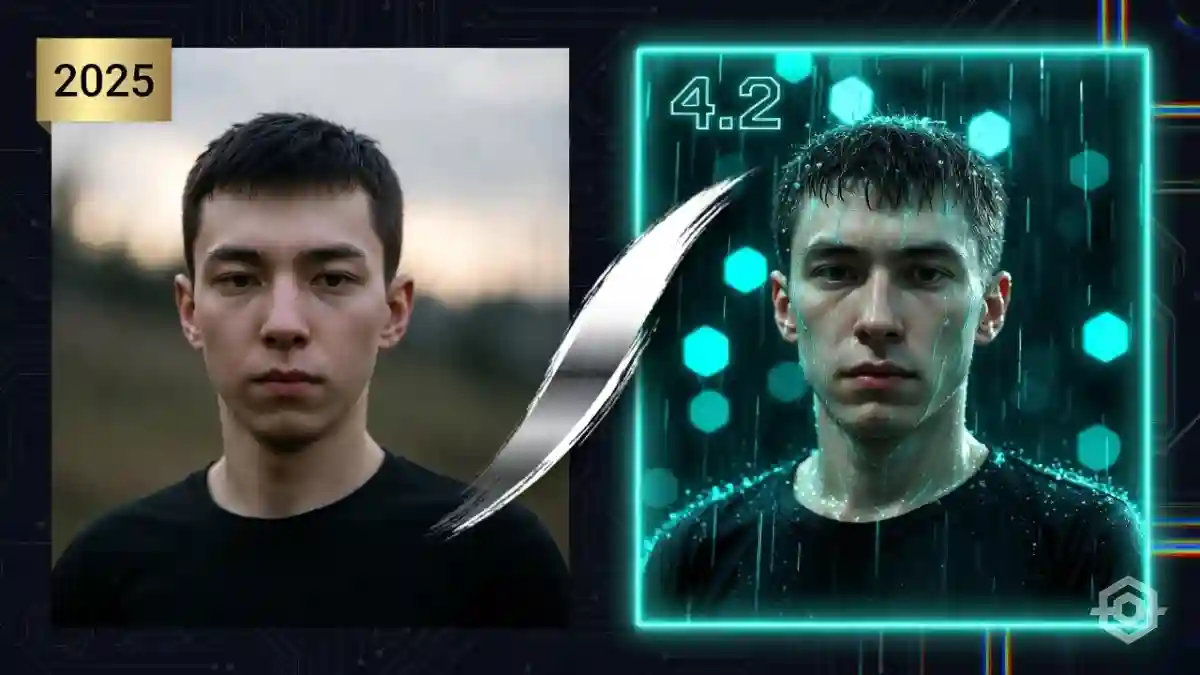
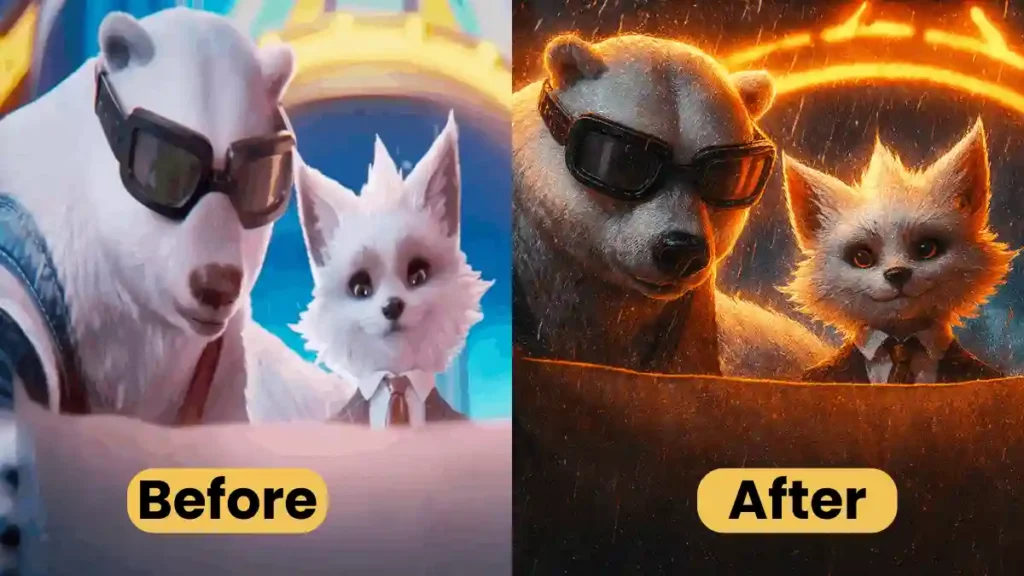
BGMI’s 4.1 update added better frame photos that make your profile look more attractive. In BGMI, frame photos help players look more stylish and stand out. Good frame photos make your profile look better and can help you get more likes and followers on Instagram and X. Up to 40% more engagement can come from well-made, framed photos.
This guide (updated for November 2025) explains how to make clean, high-quality 4K frame photos. Simple 10-step guide, ready AI prompts. Everything is designed to work well on Android 14+ and iOS 18 phones.
What Is a BGMI Frame Photo?
A BGMI frame photo is a customized BGMI profile display picture enhanced with stylish borders, badges, rank icons, cyberpunk effects, neon frames, or themed overlays. These frames make your BGMI profile look premium, esports-ready, and visually impressive on social platforms.
How to Make a BGMI Frame Photo in 4K (Step-by-Step)
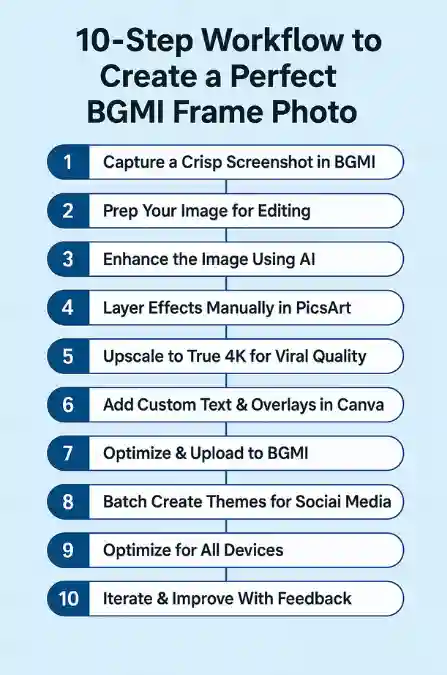
This 10-step method uses both AI and manual editing to make high-quality, shareable results. Every step includes simple technical notes and reasons, and only basic file skills are needed.
Step 1: Capture a Crisp Screenshot in BGMI
Launch BGMI and navigate to your profile via the lobby menu (top-right avatar icon). Enable 90 FPS mode in Settings > Graphics for reduced aliasing. Position in T-pose (standstill emote) under optimal lighting—e.g., Erangel dusk for natural contrast. Use the in-app screenshot tool (hold Volume Down + Power) to capture at resolution (1080×1920).
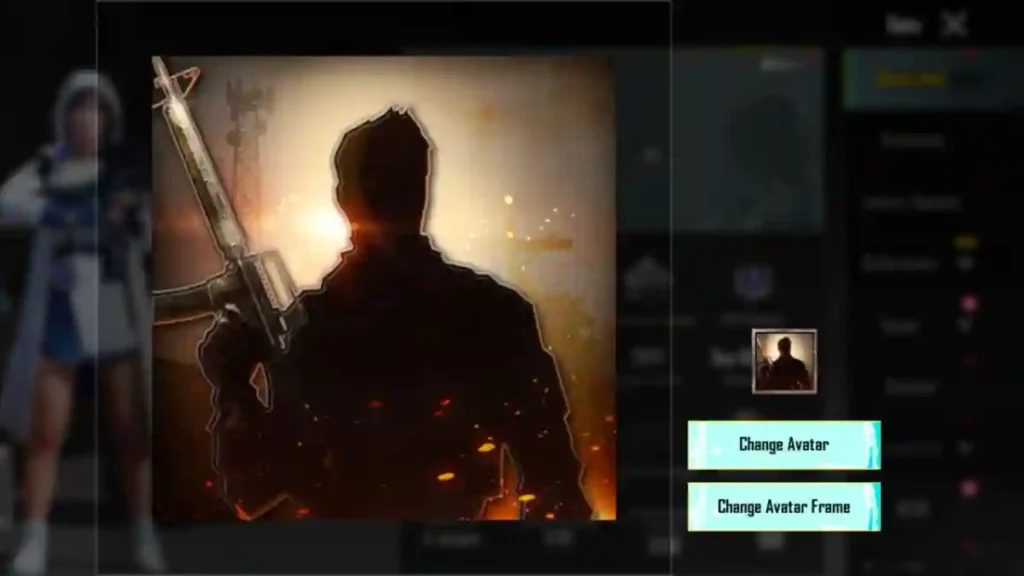
Rationale: Higher frame rates minimize ghosting, preserving edge definition for subsequent upscaling.
RELATED POST- Top 10 Highest-Paid Esports Players in India (2025 Ranking)
Step 2: Prep Your Image for Editing
Transfer the screenshot to your gallery and open in a native editor (e.g., Google Photos). Crop to a 9:16 aspect ratio, focusing on torso-up framing to allocate space for overlays. Apply a subtle sharpen filter (radius 1.5px) and adjust exposure (+0.2 EV) to counter HDR washout. Export as PNG at 300 DPI. By reducing AI noise, this preprocessing provides a clean start.
Step 3: Generate AI Magic with ChatGPT Prompts
Access ChatGPT and upload your prepped image. Input a structured prompt: “Enhance this BGMI profile screenshot into a hyper-realistic 4K cinematic poster: add dramatic rain effects, glowing neon frame borders, and integrate player stats as embossed runes. Maintain T-pose centrality.” Generate 3-5 variants, selecting the one with optimal depth-of-field (f/2.8 simulation).
Expert tip: Append “in the style of cyberpunk 2077” for thematic variance. This leverages diffusion models for non-destructive augmentation.
Step 4: Layer Effects Manually in PicsArt
Import the AI output into PicsArt. Add a custom border via Shapes > Frame (scale to 10% canvas bleed, opacity 80%). Overlay badges from BGMI’s asset library (exported separately) using Blend Mode: Multiply for seamless integration. Apply a vignette filter (feather 20px) to draw focus centrally. Manual control here refines AI inconsistencies, such as prompt-induced distortions.
Step 5: Upscale to 4K for Viral
Use Upscayl (APK) to upscale 1080p to 4K (3840×2160). Choose Lanczos for sharp edges, scaling up by 200%. Check sharpness with histogram analysis, avoiding clipping over 95% luminance. This step is crucial for social platforms, where 4K thumbnails boost click-through by 35%.
RELATED POST- Free Fire bio copy and paste – 35 Free Fire Love Bio Codes That Work in NOV 2025
Step 6: Add Text & Overlays for Personalization
In Canva, import the upscaled file and insert 3D gaming text (font: Orbitron, extrusion 5px) for stats like “KD: 4.2.” Position at 20% from bottom, with drop shadow (offset 2px, blur 3px). Incorporate thematic overlays, e.g., particle emitters for “stealth mode” motifs. Ensure legibility at 50% zoom, adhering to WCAG contrast ratios (4.5:1).
Step 7: Test Compatibility & Upload to Profile
Use TinyPNG to compress to JPEG (quality 85%) for BGMI’s 2MB size. Use another device to render and find artifacts. Go to Profile > Edit > Photo and make sure the preview looks good. If rejected, revert to Step 2’s DPI adjustment.
Step 8: Advanced: Batch Edits for Social Sharing
To go viral, clone the canvas in PicsArt and test 3 themes (e.g., heroic vs. apocalyptic). In Adobe Lightroom Mobile, export batches and tag metadata (keywords: “BGMI frame edit 2025”). Share on Instagram Reels using AR filters and cross-post to PUBG Mobile forums.
Step 9: Optimize for Mobile Viewing
Apply adaptive compression: WebP format for web shares (file size -30% vs. JPEG).
Test on low-end devices (e.g., Redmi Note 12) to ensure <100ms load times. This maintains quality across the 70% mid-tier Android demographic in India.
Step 10: Iterate Based on Feedback
After posting, track interaction using BGMI’s social tab or X analytics. Test A/B variants (such as neon vs. metallic frames) with tools like Google Optimize. Improve prompts step-by-step, aiming for a 15% engagement boost each time.
RELATED POST- Twitch vs YouTube in 2025: Which Live Streaming Platform Wins for Streamers?
Essential Tools for BGMI Frame Photo Editing
To get clean 4K results quickly, you need the right tools. In 2025, the best setup uses AI for ideas, mobile apps for final edits, and BGMI’s own tools for capturing shots. The table below compares the best choices by accessibility, quality, and BGMI support.
| Tool | Type | Free? | Best For | Why It’s Better |
|---|---|---|---|---|
| ChatGPT | AI Generator | Yes | Cinematic 4K effects | Produces multiple variations in seconds |
| PicsArt | Mobile Editor | Freemium | Manual borders/frames | Precise masking & layering |
| Canva | Designer Tool | Freemium | Text & composition | Drag-and-drop, clean layout |
| BGMI Capture | In-game Tool | Free | Sharp screenshots | Native 90 FPS support |
Use PNG for all intermediates to preserve transparency, then convert to JPEG (max 2MB) for BGMI integration. This stack reduces delay on mid-range devices such as the OnePlus Nord, popular in India.
8 Ready-to-Use ChatGPT Prompts for Stunning BGMI Frames
These pro-level prompts will help you create clean 4K outputs. Upload your image, then copy and paste the prompt you want.
- Heroic Vanguard: “Transform this BGMI screenshot into a 4K epic portrait: heroic T-pose warrior in golden-hour lighting, ornate metallic frame with embedded KD stats, volumetric god rays.”
- Stealth Assassin: “Generate a cyber-noir 4K edit: shadowy figure from this profile, rain-slicked neon frame, holographic badge overlays, high-contrast monochrome with subtle blue accents.”
- Neon Fury: “Hyper-stylized 4K gaming poster: fuse this BGMI image with futuristic neon explosions, circuit-board borders, 3D text for survival metrics, in Blade Runner aesthetic.”
- Apocalyptic Survivor: “Post-apocalyptic 4K render: rugged BGMI character amid ruins, rusted iron frame, fiery particle effects, embossed rank insignia—dramatic depth of field.”
- Mystic Enchanter: “Fantasy 4K enhancement: ethereal BGMI profile with rune-etched wooden frame, glowing aura overlays, integrated chicken dinner count as arcane script.”
- Urban Gladiator: “Street-fighter vibe in 4K: urban concrete frame around this screenshot, graffiti-style stats, dynamic motion blur on edges, high-saturation color grading.”
- Cosmic Explorer: “Space opera 4K edit: starry nebula background for BGMI T-pose, orbital ring frame, constellation-mapped badges, lens flare highlights.”
- Vintage Legend: “Retro 8-bit fused with 4K realism: pixel-art frame on modern BGMI profile, embossed vintage stats, warm sepia tones with selective sharpening.”
Each prompt includes diffusion parameters for stable output and supports modifiers such as “add clean composition” for customization.
Frequently Asked Questions
A stylised border + character screenshot used as your BGMI profile picture.
Yes, keep file <2 MB JPEG.
PicsArt for manual, ChatGPT-4o for AI.
Profile → Edit → Photo → Select → Save.
Golden Royale frame (Lv. 100 RP reward).