In Free Fire, hitting headshots consistently isn’t just about reflexes, it’s about the right sensitivity settings. While sensitivity plays a major role, combining it with the Best Free Fire Control Settings 2026 ensures your drag shots, quick scope, and reaction speed work perfectly together. This 2026 updated guide explain the best Free Fire headshot sensitivity settings, explains why they work, and shows you how to fine-tune them for your phone and playstyle.
Whether your goal is one-tap headshots, better close-range fights, or more control with sniper rifles, this is a complete, beginner-friendly guide.
What Is Headshot Sensitivity in Free Fire?
Headshot sensitivity decides how fast your crosshair moves when you drag to the enemy’s head. If it’s too low, you’ll miss. Too high, you’ll overshoot.
There are multiple sensitivities in the game like red dot, 2x, 4x and sniper scope, but the real game changer is the general sensitivity. Rotate the screen quickly, drag aim at the right time and control the fire button. If you set this up correctly, about 99% of your gameplay and headshot consistency will automatically improve.
RELATED POST- Free Fire Profile Edit: How to Make Your Profile Look Like a Pro (Step-by-Step)
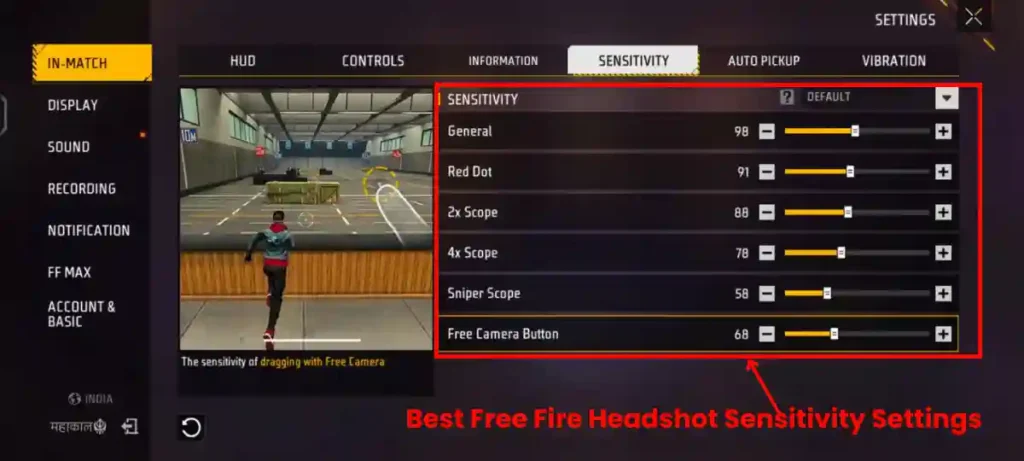
Best Free Fire Headshot Sensitivity Settings
These settings are perfect for beginners and compatible with the present Free Fire meta.
Recommended Sensitivity Settings:
| Setting | Value |
|---|---|
| General | 95 – 100 |
| Red Dot | 90 – 95 |
| 2x Scope | 85 – 90 |
| 4x Scope | 75 – 80 |
| AWM Scope | 50 – 60 |
| Free Look | 65 – 70 |
For players who want even more refined drag control and updated OB52 values, we’ve covered the latest OB52 headshot sensitivity adjustments in a dedicated step-by-step guide.
Why this works:
- High General & Red Dot sensitivity helps with close-range headshots
- Slightly lower scope sensitivities reduce recoil and shaking
- Balanced AWM sensitivity improves sniper accuracy
High vs Low Sensitivity- Which Is Better for Headshots?
| Sensitivity Type | Pros | Cons |
|---|---|---|
| High Sensitivity (Recommended for Beginners) | ✅ Faster drag shots ✅ Better close-range combat | ❌ Requires practice to control |
| Low Sensitivity | ✅ Stable long-range aim | ❌ Too slow for rush gameplay |
Best approach: Start high, then reduce gradually until your drag shots feel natural.
Device-Based Sensitivity Adjustments
Your phone’s performance directly affects sensitivity.
Low-End Devices (2–4GB RAM)
Higher sensitivities compensate for lag/FPS drops:
- General: 180–200
- Red Dot: 190–200
- 2x: 170–190
- 4x: 160–180
- Sniper: 140–170
- Free Look: 180–200

Close background apps and set graphics to Smooth for stability.
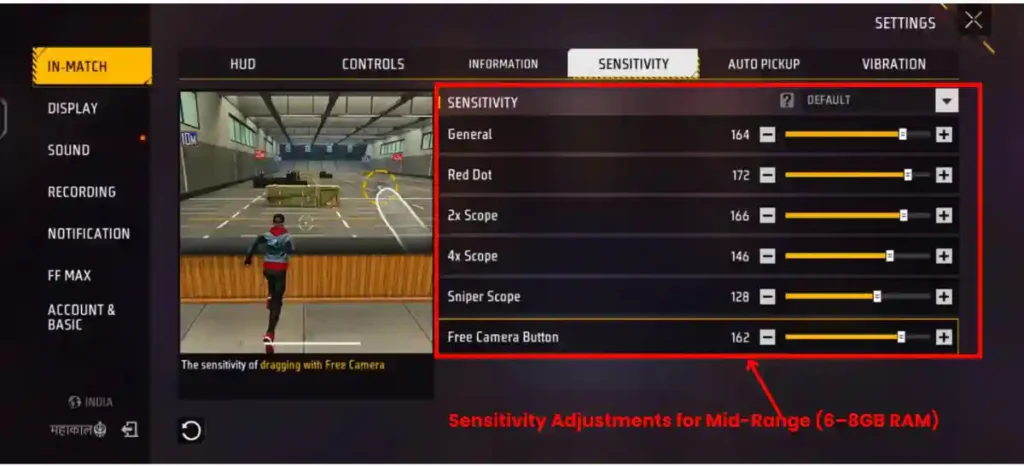
Mid-Range (6–8GB RAM)
Balanced for smooth 60–90FPS:
- General: 150–180
- Red Dot: 160–190
- 2x: 150–170
- 4x: 140–160
- Sniper: 120–150
- Free Look: 150–180
Enable Game Mode and high frame rate if supported.
RELATED POST- Free Fire Profile Edit 2025: AI Cinematic Poster Guide
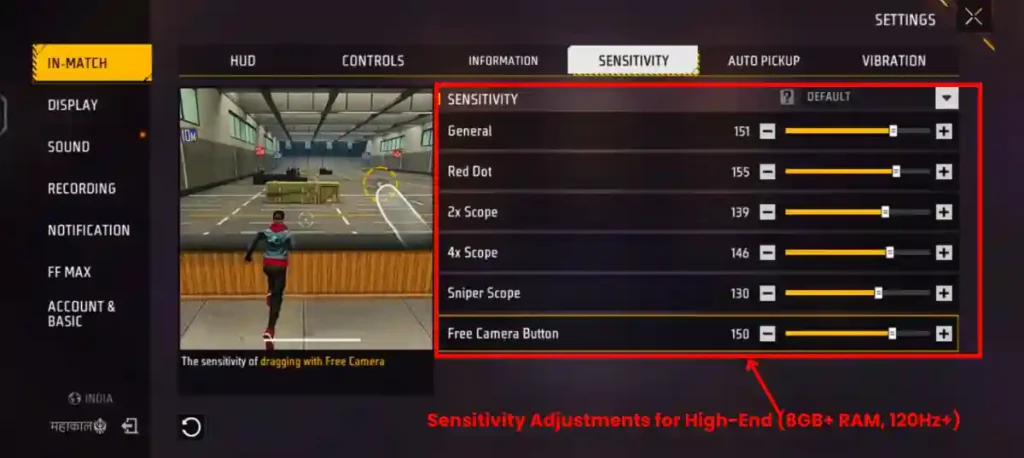
High-End (8GB+ RAM, 120Hz+)
Lower for precision on stable FPS:
- General: 140–170
- Red Dot: 150–180
- 2x: 140–160
- 4x: 130–150
- Sniper: 100–140
- Free Look: 140–170
Use the gyroscope for better control.
Raistar Sensitivity Setups
Popular creators like Raistar favor aggressive high-sensitivity setups for drag headshots. Recent 2025 leaks/videos show Raistar-inspired configs around:
- General/Red Dot: 190–200
- Scopes: Slightly lower for control
- DPI: 480–600 (device-dependent)
Many pros emphasize custom HUDs with large fire buttons (size 50–60) positioned for easy upward drags.
How to Adjust & Test Sensitivity Settings
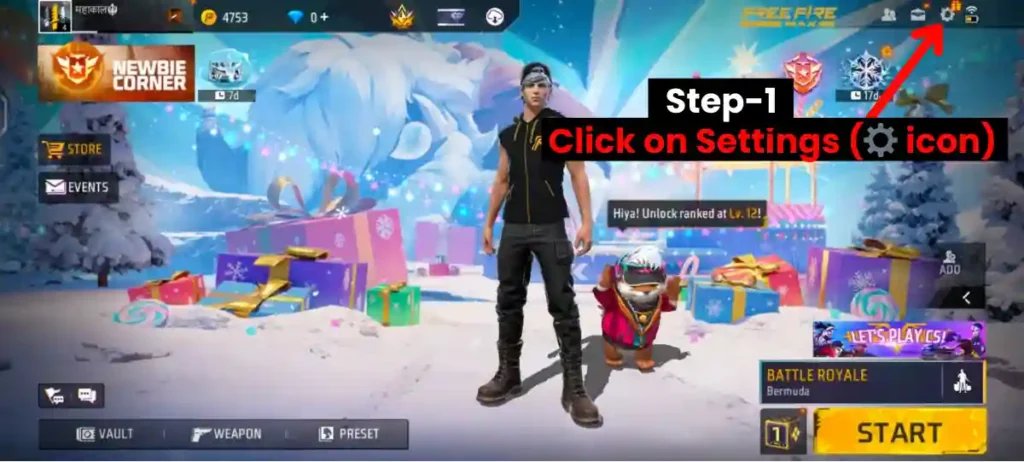
- Open Free Fire
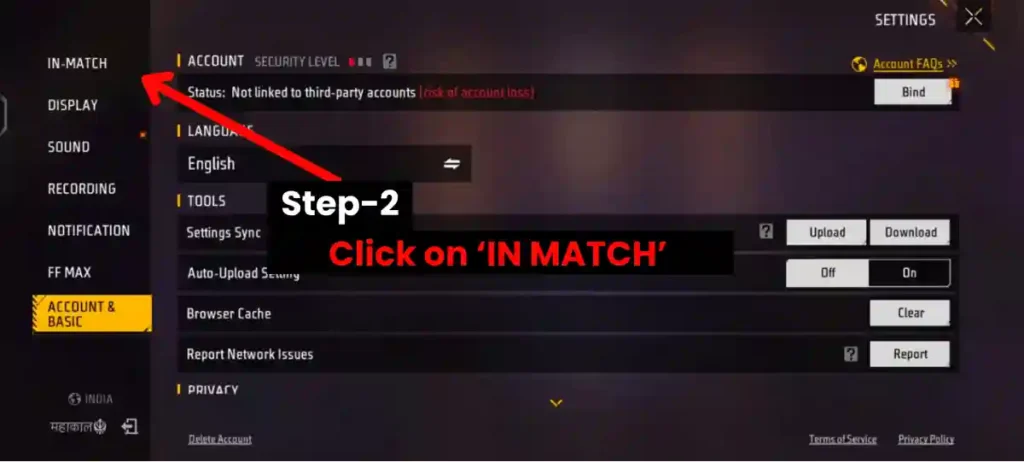
2. Under the setting Section, Click on ‘In-Match‘
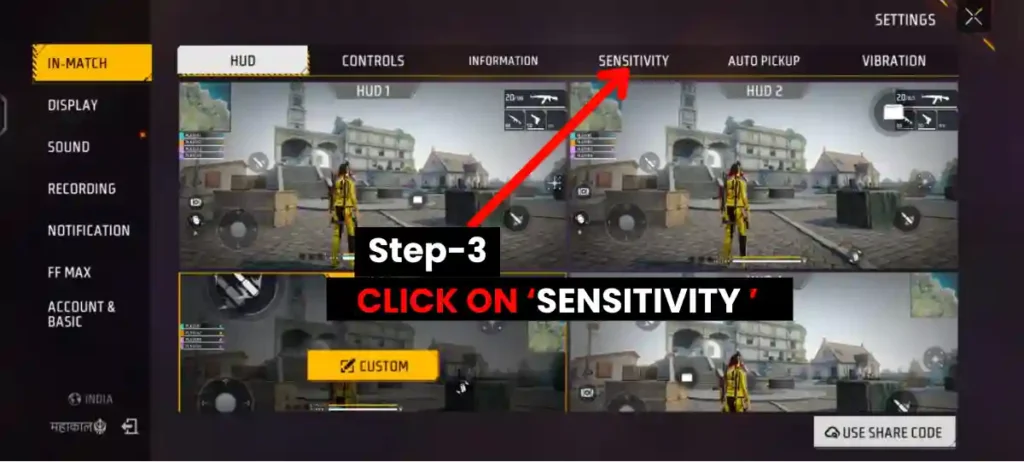
3. In-Match section Click on ‘SENSITIVITY‘
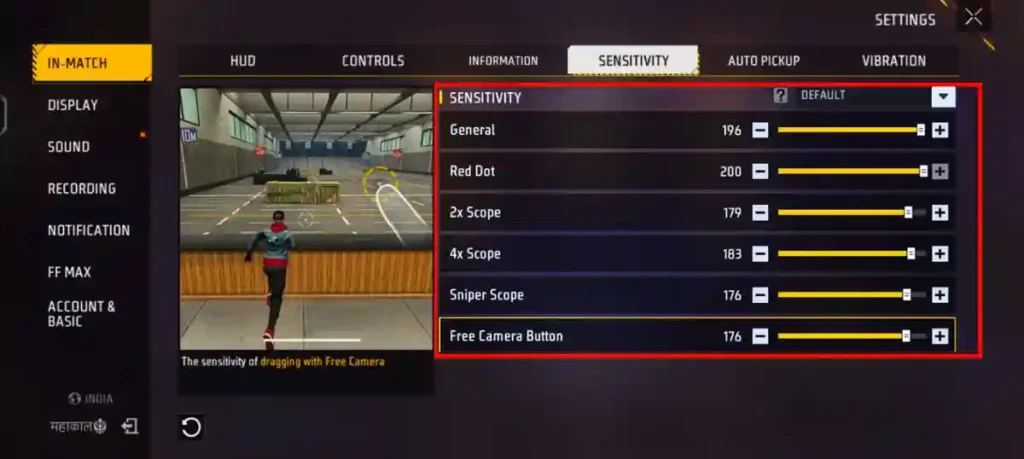
4. Now Customize All SENSITIVITY Value according to your requirement:
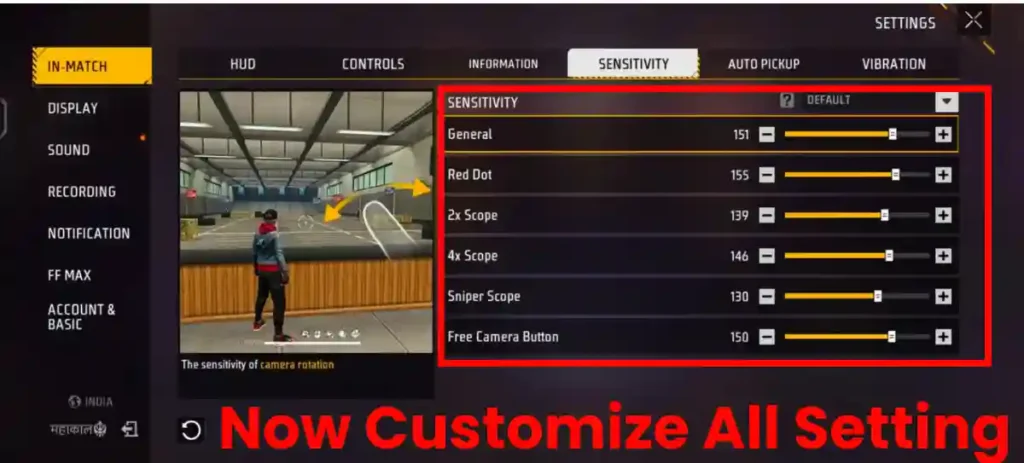
- Slide values or input numbers (up to 200).
- Head to Training Island:
- Practice drag shots on dummies (swipe up while firing).
- Test one-taps: Tap fire button without dragging for close-range.
- Adjust in 10-point increments until comfortable.
- Play Custom Rooms or Clash Squad to fine-tune in real scenarios.
Enable Aim Assist and, if your device supports it, turn on the gyroscope with full or high sensitivity to improve fine aim control during drag shots.
RELATED POST- Best Custom HUD in Free Fire (2025): Top 2, 3, 4 Finger Layouts and Pro Codes
Should You Copy Pro Players’ Sensitivity?
Answer: No, not blindly.
Pro players:
- Use different phones
- Play aggressively
- Have years of muscle memory
Use pro player sensitivity settings only as a starting reference, not as a final solution. Simply copying numbers will not give instant headshots, because professional players use different devices, playstyles, and have years of muscle memory.
Your sensitivity should always feel comfortable and controllable, not something that looks impressive on paper but hurts your accuracy in real matches.
Common Mistakes to Avoid
- Changing sensitivity every match
- Using extreme DPI tricks
- Ignoring device performance
- Practicing only in ranked mode
Consistency and patience matter more than “secret settings”.
Final Thoughts
Practice makes man perfect. The best headshot sensitivity is the one that perfectly matches your phone’s performance, your reflex speed, and your personal comfort level while aiming. Start with the recommended 2025 sensitivity settings, practice consistently, and make small, gradual adjustments instead of frequent big changes.
Frequently Asked Questions
Use: General 100, Red Dot 95, 2x 90, 4x 80, AWM 60
Only as a reference. Always test on your device.
Yes, especially for drag headshots and sniper accuracy.
480–600 DPI is ideal for drag shots.